Your inbox fills faster than you can clear it. You have clicked unsubscribe, marked a few as spam, maybe deleted a thousand promos in one sweep, and the flood keeps coming. Stopping it for good is not one trick. It is a handful of tools, each aimed at a different kind of sender.
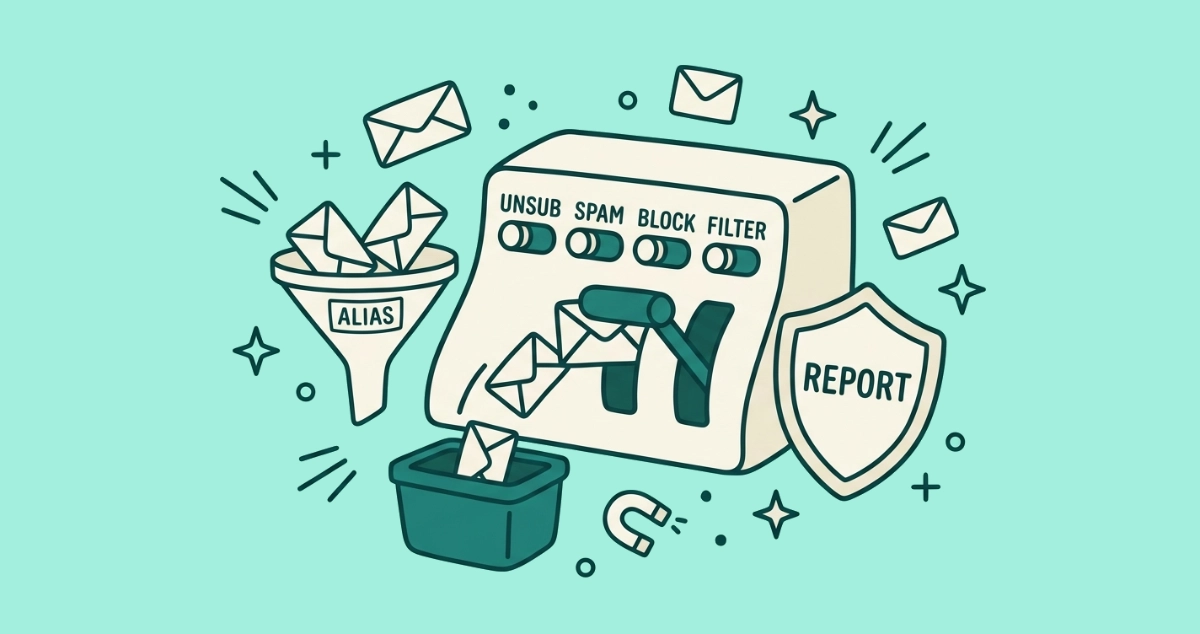
To stop spam for good, match the action to the sender. Unsubscribe from real companies you recognize, mark unknown or suspicious mail as spam, block anyone who keeps mailing, set filters to automate the rest, use masked aliases to protect new signups, and report senders who ignore the law. No single button does all six.
What are you actually trying to stop: spam, graymail, or marketing?
Before you touch a single button, sort the mail into three piles, because each one needs a different tool.
Spam is mail you never asked for. A stranger scraped or bought your address and is now selling counterfeit sunglasses or running a scam. You have no relationship with the sender and no list to leave.
Graymail is the mail you did opt into and stopped reading: the newsletter from 2022, the store you bought one thing from, the app that mails a weekly digest. It is legitimate, it carries a working unsubscribe link, and it makes up most of what buries a typical inbox. We covered graymail in depth separately; the short version is that your provider will only sort it, never stop it.
Marketing you still want is the narrow slice you actually open. Leave that alone.
Most people call all three “spam.” The distinction decides everything downstream, because the wrong tool on the wrong pile backfires. Unsubscribing from real spam invites more of it. Marking a newsletter you joined as spam dents a sender you might still want. Sort first, then act.
Why is there no single button to stop all spam?
There is no master unsubscribe because every opt-out is a separate request to a separate company, and no provider sends them in bulk on your behalf. Gmail and Outlook filter hard, but filtering only decides where a message lands. It never removes you from a list or tells a sender to stop.
So the real skill is matching the action to the sender. Unsubscribe reaches out to a company you trust and asks to be removed. Marking as spam trains your own filter and sends nothing to the sender. Blocking reroutes one address on your side. Our guide to when to unsubscribe and when to mark as spam breaks the choice down message by message. The rest of this guide is the full toolkit, one method at a time.
Method 1: Unsubscribe from senders you recognize
Unsubscribe from the senders you remember opting into: the retailer, the newsletter, the app digest. For a legitimate company this is the clean exit, and the law is behind you. Under the U.S. CAN-SPAM Act, a commercial sender must honor your opt-out within 10 business days, and it cannot charge you or make you log in to leave.
Reach for the native unsubscribe button at the top of the message, next to the sender’s name, before the link buried in the footer. That button uses the one-click standard, so your mail app sends a structured request straight to the sender with no web page to load.
Doing this across years of signups is the slow part. Email Unsubscriber scans your Gmail or Outlook in your own browser, lists every subscription sender in one place, and fires real one-click requests where senders support them. Your email content never reaches our servers; we never read, analyze, or monetize it. If you want the manual routes first, our guide to mass unsubscribing in Gmail covers all four.
Method 2: Mark unknown mail as spam (and never unsubscribe from it)
Mark as spam anything you do not recognize, anything already sitting in your spam folder, and anything asking for a password or payment. Reporting it trains your provider’s filter to catch similar messages, and it sends no signal back to the sender, so it cannot confirm your address is live.
That last part is why you should never click unsubscribe inside real spam. The link is often a tripwire, not an exit. According to DNSFilter’s chief technology officer, cited by Popular Science in June 2025, roughly 1 in 644 unsubscribe links leads to a possibly malicious site. Your click tells a spammer a real person reads the address, and the volume climbs from there, which our piece on why unsubscribing can bring more spam walks through. Some of those pages are phishing traps wearing an opt-out costume, built to harvest your login. When you are unsure, the spam button is always the safer of the two.
Method 3: Block the senders who keep coming back
Block a sender when you know the exact address and never want to hear from it again, especially one with no working unsubscribe or one that keeps mailing after you left. A block is a rule on your own account: your provider reroutes that address to Spam, Junk, or Trash whether or not the sender ever cooperates.
The steps differ by app. In Gmail you block from the three-dot menu inside a message, in Outlook from More options, and in Apple Mail by tapping the sender’s name. One catch on iPhone: the default keeps blocked mail in your inbox, so switch Blocked Sender Options to Move to Trash. Our block-a-sender walkthrough has the click path for each provider. Remember what a block cannot do, though. It does not remove you from a list, and a determined sender can return from a fresh address.
Method 4: Set filters so the cleanup runs itself
Set filters so the mail you cannot stop at least sorts itself. A filter cannot unsubscribe you, but it can move a sender straight to a folder, mark it read, or delete it on arrival, which keeps a stubborn trickle out of sight. The FTC’s own guide to getting less spam lists filtering and blocking as first-line defenses alongside reporting.
Use filters for two jobs. First, hold back senders you have already reported who keep slipping through. Second, auto-file the marketing you tolerate but do not want in your main inbox. Just weigh the trade: a filter runs forever and hides the symptom, while unsubscribing ends the cause. Filter the mail you are stuck with, and unsubscribe from the mail you can actually leave.
Method 5: Use masked aliases to protect new signups
Stop the next wave before it starts by handing out a masked alias instead of your real address. A masked alias is a random forwarding address, something like k7f2x@duck.com, that passes mail to your real inbox while the sender never learns your true address. DuckDuckGo Email Protection, Firefox Relay, Apple Hide My Email, SimpleLogin, and Addy.io all offer them free or cheap, and some strip tracking pixels on the way through.
Plus-addressing is the free cousin: add +shop to your Gmail name, as in you+shop@gmail.com, so you can filter that mail or spot who leaked the address later. Aliases guard future signups, not the senders already in your inbox, so pair them with a real unsubscribe pass. Our rundown of masked email aliases compares the services and shows where each one falls short.
Method 6: Stop handing out your real address
Guard your real address like the tracking key it is. Every form, contest, and loyalty program you hand it to is one more database that can leak, sell, or resell it. The FTC’s advice runs the same way: the fewer places your address lives, the less spam finds its way back.
Three habits cut the exposure. Keep one address for people and banking, and a second, disposable one for shops and signups. Do not post your address in public forum profiles or on a web page, where scrapers harvest it in bulk. And when a service you use is breached, expect the spam that follows and be ready to retire the address you gave it.
Method 7: Report senders who ignore the law
Report the senders that break the rules, because regulators build cases from volume. If a legitimate company keeps mailing past the 10-business-day window, file it. In the U.S., report at reportfraud.ftc.gov with the message’s full headers and your opt-out date. In the EU, file with your national data protection authority; in the UK, the ICO.
You will not get a personal reply, but each documented complaint adds weight to the file that eventually forces a repeat sender to comply or pay. Our step-by-step guide to reporting a company that ignores your unsubscribe covers what evidence to keep and exactly where to send it.
Your 15-minute spam-cleanup plan
You do not need a whole weekend. Here is the order that clears the most mail in the least time.
- Minutes 0 to 2: Sort, do not click. Open your inbox and mark every obvious stranger as spam. Do not open them, and do not go hunting for their unsubscribe links.
- Minutes 2 to 8: Unsubscribe from the recognized senders. Work through the newsletters and promos you remember joining, using the top-bar unsubscribe button where your client shows one. If the backlog runs into the hundreds, review every sender in one browser-based pass instead of clicking through them one at a time.
- Minutes 8 to 11: Block the repeat offenders. For any sender that has ignored a past unsubscribe, block the address in your client so it stops regardless.
- Minutes 11 to 13: Set two filters. One to auto-file the marketing you tolerate, one to bin anything from an address you already reported.
- Minutes 13 to 15: Set up an alias. Create one masked alias and use it for your next three signups. That is prevention running from now on.
Then note the date. Spam refills every inbox, so a five-minute pass every month or two keeps the count near zero, and with a one-off cleanup there is nothing to cancel once it is done.
The takeaway
Stopping spam for good is not one heroic click. It is a small set of tools, each pointed at a different sender. Unsubscribe from the companies you recognize, mark the strangers as spam, block the ones who will not quit, filter what is left, and hand out aliases so less of it ever starts. Sort the mail first, match the tool to the sender, and the flood turns back into a trickle you can manage in minutes a month.