A sender keeps landing in your inbox. Maybe there was never an unsubscribe link, maybe you clicked one and nothing changed, or maybe you just want this one address gone for good. Blocking is the tool for that, and it works a little differently in every email app.
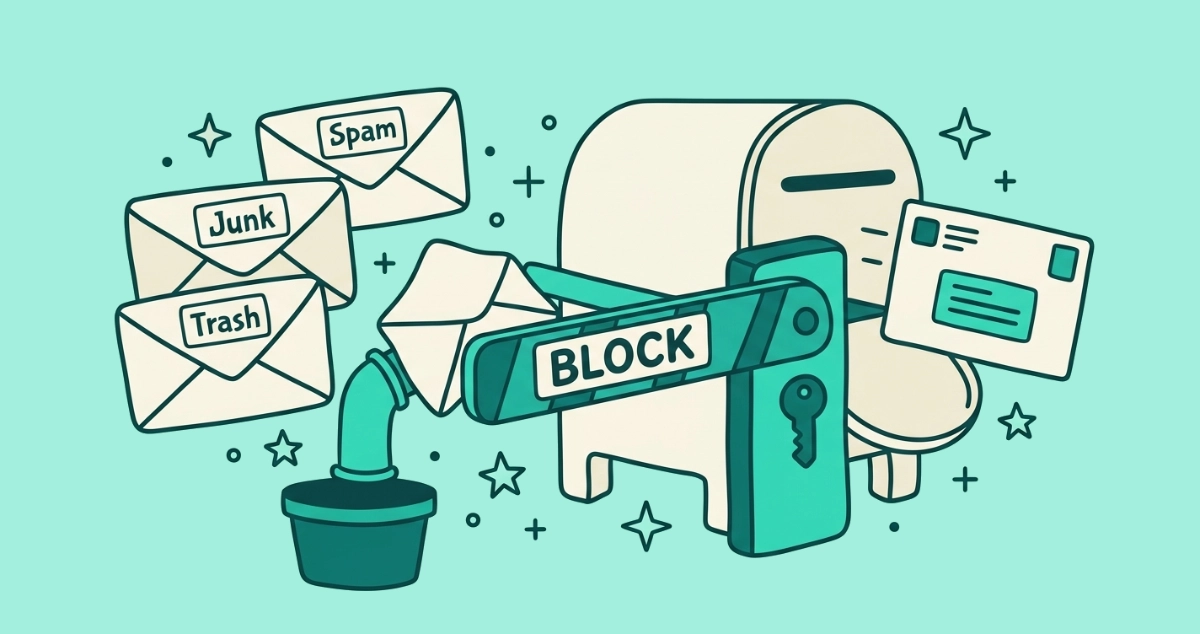
Open a message from the sender and choose Block. In Gmail, use the three-dot More menu; blocked mail goes to Spam. In Outlook, pick More options then Block, and it lands in Junk. In Apple Mail, tap the sender and choose Block this Contact. Blocking is a rule on your own account, not a request to the sender.
How is blocking different from unsubscribing and marking as spam?
Blocking is a rule you set on your own account, unsubscribing is a request you send to the sender, and marking as spam trains your provider’s filter. All three make an unwanted email go away, but they point in different directions and produce different results.
Blocking never leaves your side. Your email provider watches for that address and reroutes its future mail to Spam, Junk, or Trash, whether or not the sender ever agrees to anything. Unsubscribing does the opposite: it reaches out to the sender and asks to be removed from a list, which works only if the sender is legitimate and honors it. Marking as spam sits between the two, feeding your provider’s filter so it learns to catch similar mail on its own.
| Criterion | Unsubscribe | Mark as spam | Block |
|---|---|---|---|
| Who gets the signal | The sender | Your provider’s filter | Your account, as a rule |
| Removes you from the list | Yes, if the sender is legitimate | No | No |
| Needs the sender to cooperate | Yes | No | No |
| Where future mail goes | Nowhere, you left the list | Spam, for similar mail | Spam, Junk, or Trash |
| Stops a sender who ignores you | No | Partly | Yes, on your side |
| Best used for | Real senders you recognize | Unknown or suspicious mail | One address you never want again |
The short version: unsubscribe asks a company to stop, marking as spam teaches your filter a pattern, and blocking slams the door on one specific address. For a full walkthrough of which button to reach for on any given email, see our guide to unsubscribe versus mark as spam.
How do I block a sender in Gmail?
Gmail blocks a sender from inside any of their messages, and their future mail goes to Spam.
- Open a message from the sender you want to block.
- Click the three-dot More menu at the top right of the message, next to the reply arrow.
- Select Block ”[sender]“. Gmail confirms, and the block takes effect immediately.
On the Gmail app for iPhone or Android, open the message, tap the three-dot menu in the top-right corner, and choose the same Block option. According to Google’s Gmail Help, after you block a sender all future emails from them go to Spam, where Gmail deletes them automatically after 30 days. The sender is never told.
Blocking still lets the mail into your Spam folder rather than deleting it on arrival. If you want a sender’s messages gone entirely, build a filter instead: click the sliders icon in the search bar, enter the address in the From field, click Create filter, tick Delete it, and confirm. Future mail from that address then skips both your inbox and Spam. If your real goal is to clear years of newsletters rather than block one address, our guide to mass unsubscribing in Gmail covers the faster routes.
How do I block a sender in Outlook?
Outlook blocks a sender in two clicks from the message, and blocked mail moves to the Junk Email folder.
- Select the message from the sender in new Outlook or Outlook.com.
- Open More options (the three dots in the toolbar), then choose Block under Move & delete.
- Confirm with OK. Outlook deletes the current message and sends the sender’s future mail to Junk.
You can also manage the list directly. Open Settings, go to Mail, then Junk email, and under Blocked senders and domains add an address or a whole domain, then Save. Microsoft’s support documentation confirms that Outlook automatically moves messages from a blocked sender to the Junk Email folder. Blocking a domain is useful when a company mails you from a rotating set of addresses that all share the same tail end. To leave a legitimate Outlook newsletter cleanly rather than block it, our guide to unsubscribing in Outlook walks through the Subscriptions panel.
How do I block a sender in Apple Mail on iPhone?
Apple Mail blocks a sender from the message header, and the block syncs to every device signed into your iCloud account.
- Open a message from the sender in Mail.
- Tap the sender’s name at the top of the message to open their contact card.
- Tap Block this Contact, then confirm.
Here is the part that surprises people. Apple Mail’s default setting for blocked senders is Mark as Blocked, Leave in Inbox, which keeps the message right where it is and only mutes its notification. Blocking on iPhone does not remove the mail from your inbox until you change that setting. Open Settings, tap Mail, then Blocked Sender Options, and switch it to Move to Trash so blocked mail is routed out of sight. On newer iOS versions, Mail sits under the Apps list in Settings first. Your full blocked list lives at Settings, Privacy & Security, Blocked Contacts, and it applies across your Apple devices.
When should you block a sender instead of unsubscribing?
Block a sender when you know the exact address and never want to hear from it again, especially one that has no working unsubscribe or ignores the requests you send. Unsubscribing is the cleaner exit for a legitimate company, but it depends on that company playing fair. Blocking does not.
Reserve blocking for three cases. A sender with no unsubscribe link and no top-bar unsubscribe button. A sender that keeps mailing after you unsubscribed and the legal window has passed. And any address you simply want silenced without waiting on the sender to act. For obvious junk from a stranger, marking as spam is usually the better move, because clicking unsubscribe inside real spam can confirm your address is live. According to DNSFilter’s chief technology officer, cited by Popular Science in June 2025, roughly 1 in 644 unsubscribe links leads to a possibly malicious site, and our guide to why unsubscribing can bring more spam explains when to block instead of click.
If you first unsubscribe and then want to know which senders ignored you, Email Unsubscriber flags them for you. It scans your Gmail or personal Outlook in your own browser, sends real unsubscribe requests where senders support the one-click standard, and its “still emailing” filter surfaces the senders who keep mailing after you left, so you know exactly which addresses to block in your client. Your email content never reaches our servers, and you can run it on your own inbox and review the full list before you touch a thing.
What blocking can’t do
Blocking changes where a sender’s mail lands, and nothing else. It is a filter on your account, not a message to the outside world, so it comes with real limits worth knowing before you rely on it.
Blocking does not remove you from any list, because the sender is never told. It does not stop them collecting, selling, or reselling your address, since your click history and their database live on their side. It does not clean up mail already sitting in your inbox; a block only affects what arrives next. And it does not reach a sender who switches addresses, because most blocks target one exact address. A domain block in Outlook or a Gmail filter that matches a pattern casts a wider net, but a determined sender on a fresh domain still slips through.
Can a blocked sender still email you?
Yes. A block usually pins one exact address, so the same sender can reach you again from a new address or a different domain the moment they choose to. This is why blocking works best as a targeted tool against a known nuisance, not as a wall against a company running many sending domains.
For a persistent sender, combine the tools. Unsubscribe first to leave the list at the source, block the address that keeps mailing, and mark anything new as spam so your filter learns the pattern. No single action covers every angle, but together they close most of the gaps a lone block leaves open.
The takeaway
Blocking is the bluntest of the three inbox tools, and the most reliable on your own side. It does not negotiate with the sender or wait for a list to update; it simply reroutes one address to Spam, Junk, or Trash. In Gmail you block from the three-dot menu, in Outlook from More options, and in Apple Mail by tapping the sender, though on iPhone you should switch Blocked Sender Options to Move to Trash so the mail actually disappears. Just remember what a block cannot do: it will not unsubscribe you, will not stop a sender from finding your address, and will not reach them once they move to a new one. For legitimate senders, unsubscribing is still the cleaner exit. Save the block for the ones who will not take the hint.