You clicked Connect on an unsubscribe app, and now you want the mechanical answer, not the marketing one: what actually runs, where, and does any part of it copy your inbox to a stranger’s server? This is the build-in-public version. Here is how our scanner reads your mail without our servers ever seeing it, described the way we would explain it to another engineer.
Email Unsubscriber scans your inbox inside your own browser. Your browser talks straight to Gmail or Microsoft, reads the sender list and unsubscribe headers on your device, and our servers never receive the messages. Access is read-only, the session expires in about an hour, and the sign-in code is open source.
What is a browser-only email scanner?
A browser-only email scanner is a tool that analyzes your inbox using code that runs inside your web browser, not on a remote server. The company hands your browser the scanning program, your browser runs it against your own mailbox, and then it is discarded. The difference that matters is where your mail sits during the work. With a browser-only design, the mail being scanned never leaves your device, so there is no copy of your inbox parked on someone else’s computer waiting to be read, leaked, or fed into a business model you never agreed to. The whole architecture is built so the honest answer to “is my inbox on your servers?” stays no.
What are the moving parts of the scan?
Four pieces do the work, and only one of them lives on your device. Your browser runs the scan. Google’s and Microsoft’s APIs are where your mail actually lives. A small, open-source sign-in service exchanges your login for an access token. Our backend validates that you signed in and serves the scanning code. That last one is the part people assume must be handling their email. It is not.
| Component | What it does | What it sees of your email |
|---|---|---|
| Your browser | Runs the scan, reads mail, fires unsubscribes | Everything the scan needs, locally |
| Gmail / Microsoft Graph API | The source your browser reads from directly | It is your mailbox |
| Open-source OAuth worker | Swaps your sign-in code for an access token | No message content |
| Our backend | Validates sign-in, serves the scanner code | No email content, ever |
The sign-in exchange runs through a Cloudflare Worker whose source is public at github.com/micro-solutions-llc/email-unsubscriber-open-oauth. You can read every line of how the login works.
What happens, step by step, when you scan your inbox?
Here is the sequence from the moment you click Connect to the moment your subscription list appears.
- You sign in. You approve read-only access on Google’s or Microsoft’s own consent screen. The open-source worker exchanges the temporary code for an access token, and our backend confirms your sign-in without ever receiving the token your browser will use to read mail.
- Your browser fetches the scanner. Our backend hands your browser the scanning code. The browser runs it in memory and discards it when you are done. That is the extent of what we serve.
- Your browser reads your mail. Using the read-only token, your browser calls the Gmail or Microsoft Graph API directly and pulls the headers and sender details the scan needs. These calls go from your machine to Google or Microsoft, not through us.
- The list is built on your device. The scan groups senders, reads each
List-Unsubscribeheader, and assembles your subscription list in the browser. Nothing about that content is uploaded. - You unsubscribe. You pick who to drop, and the unsubscribe requests fire from your browser.
The expected outcome: a full map of who is mailing you, built without a single byte of message content reaching our servers.
What does the scanner actually read?
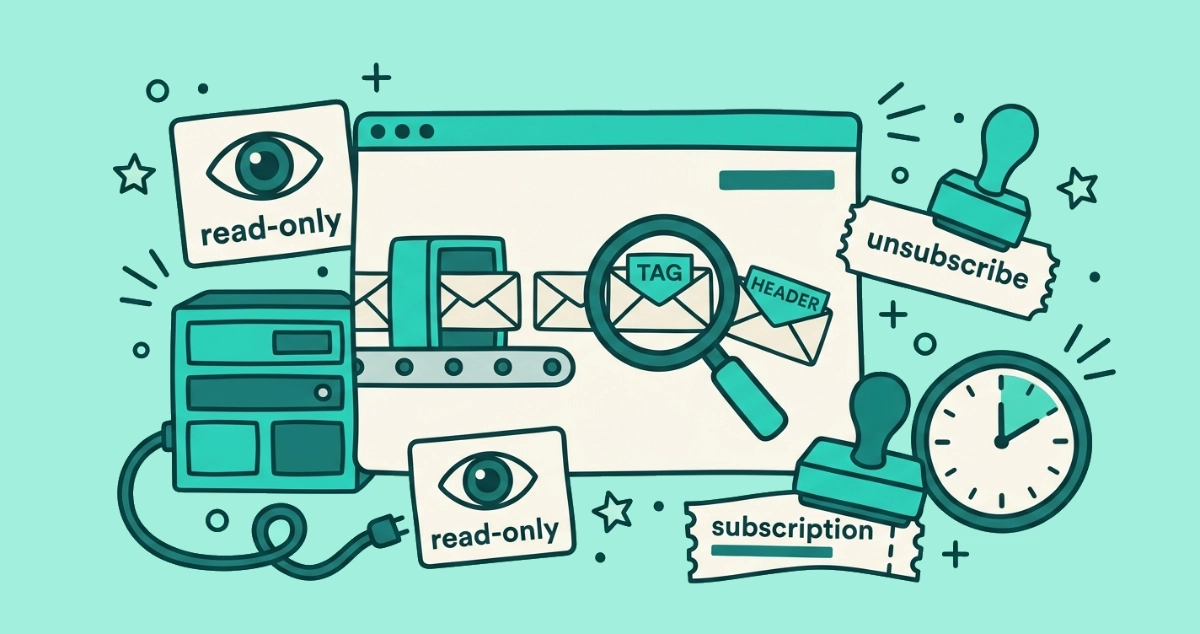
Sender metadata and headers, not the body of your conversations. To build a subscription list, the scan needs to know who sent a message and whether that sender offers an unsubscribe path. It reads the sender address, the surrounding metadata, and the List-Unsubscribe header that legitimate bulk senders attach to their mail. It does not need to read the text of your personal emails to do that job, so it does not. If you want the raw shape of that header and how to read it yourself, we broke it down in the List-Unsubscribe header explained. The scan looks at the labels on the envelopes, not the letters inside them.
How does an unsubscribe fire from your browser?
From your browser, straight to the sender, with our servers out of the loop. When a sender supports one-click unsubscribe, your browser sends a small POST request directly to that sender’s unsubscribe endpoint. This is a real internet standard: RFC 8058 defines the one-click List-Unsubscribe-Post mechanism that Gmail and Yahoo now require of large senders, and we cover it in plain terms in what one-click unsubscribe does. For senders who do not support it, the app opens the unsubscribe link or composes the mail-to address the header points to. In every case the request carries your intent from your machine. We are not a middleman relaying your unsubscribes for you.
What can read-only access not do?
It cannot send, delete, or change anything. We request read-only scopes, which is the Gmail read scope on Google and Microsoft Graph Mail.Read on personal Microsoft accounts. Read-only means the app can view your messages to list your senders, and that is the ceiling. It cannot send mail as you, cannot delete a message, and cannot touch your filters or settings. The consent screen names that scope before you approve, so the limit is one you can verify rather than one we ask you to trust.
The access is also short. According to Google’s authentication documentation, user access tokens “automatically expire after one hour,” and we request no refresh token to renew them. When the session ends, our access ends on its own. If you want it gone sooner, you can revoke the app’s access from your account settings in under a minute.
Why run the scanner in the browser instead of on a server?
Because a server would have to hold a copy of your mailbox to scan it, and that copy is the risk. Once your mail lands on a company’s servers, the only thing standing between it and a new use is a policy someone can rewrite. Keeping the scan in your browser removes that copy entirely. There is nothing to breach, subpoena, or quietly repurpose, because we never received it.
That choice costs us features, and it is fair to say so. A server-side tool can run rules while you sleep, mail you a weekly digest, auto-delete by size, and juggle several mailboxes at once. Those all need read-and-write access and a token that outlives your session, which is exactly the access we refuse to hold. If you want a full mailbox-management suite, a cloud tool fits better, and are email unsubscribe apps safe? walks through that trade before you connect any of them. To be clear about what we do collect: we run product analytics with PostHog, only after you accept cookies, to see how the app is used. What we never do is read, analyze, or monetize the content of your email, because our servers never receive it.
How can you check the email never leaves your browser?
Watch it happen. Open your browser’s developer tools, switch to the Network tab, and run a scan. You will see requests going to Google or Microsoft, and you will not see your message content being posted to our domain. You can read the open-source sign-in code, and you can check the independent CASA Tier 2 audit summarized on our security page. We kept the deeper version of this proof, and why the design guarantees it rather than merely promising it, in why we never store your emails.
If you would rather just see it run, connect Gmail or a personal Microsoft account at app.email-unsubscriber.com and watch your inbox stay exactly where it is.