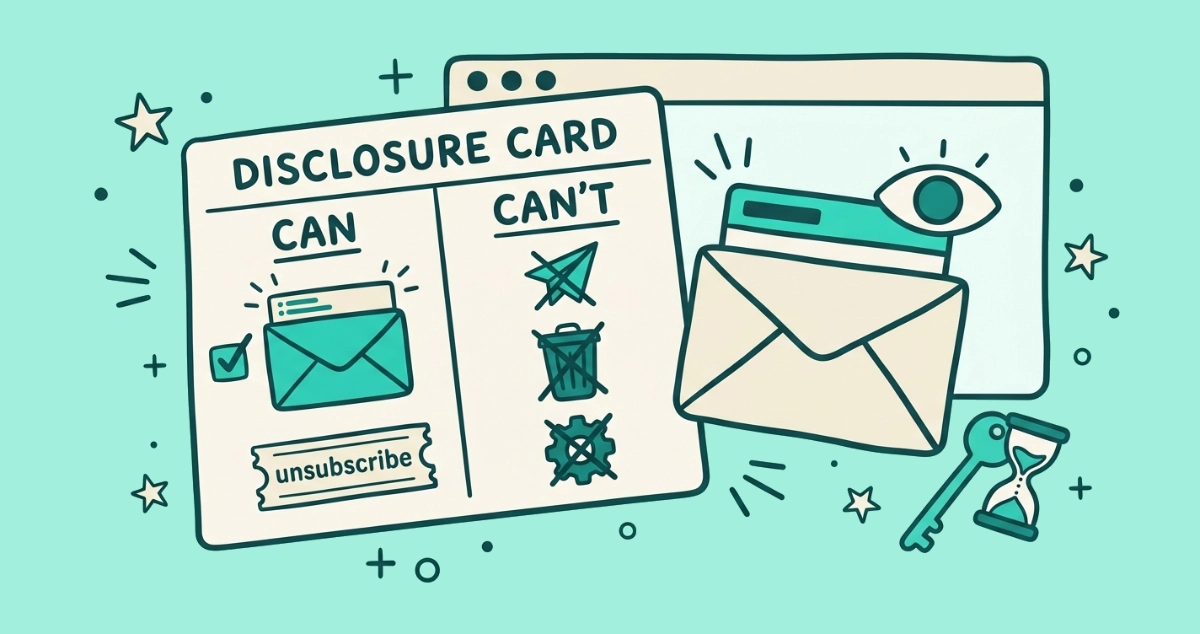
You open a promo you have not touched in weeks, and Gmail has quietly tucked a small “Unsubscribe” next to the sender’s name, as if it read the dust on the thread. Some weeks it goes further and floats a tip pointing at a batch of senders you have gone silent on, asking whether you want out. Neither one is a glitch. Gmail is watching how you treat your mail and offering to clean up after you.
Gmail suggests unsubscribing when you stop opening a promotional sender’s mail. After roughly a month of no engagement, it surfaces an “Unsubscribe?” prompt beside senders that carry a valid unsubscribe signal. Clicking it fires the opt-out on your behalf. Gmail only suggests, it never leaves a list without your tap.
What is Gmail’s auto unsubscribe suggestion?
Gmail’s unsubscribe suggestion is a prompt Gmail adds on its own, recommending you opt out of a promotional sender you have stopped engaging with. You see it as a small “Unsubscribe” beside the sender’s name at the top of a message, or as an inbox tip pointing at senders you no longer open.
Google has offered some version of this for years. The email-analytics firm Litmus reported in 2018 that Android Police first spotted the “haven’t opened these in a while” nudge in December 2017, appearing as an inbox tip after about four weeks of inactivity and applying to promotional mail. The mechanic has stayed the same since: it is a recommendation layered on top of the plain unsubscribe control, not a separate button.
The reason it matters is the shift from passive to active. The unsubscribe link on bulk mail is always there whether you notice it or not. The suggestion is Gmail pushing that link toward you, chosen from your own behavior.
Why does Gmail suggest I unsubscribe from a sender?
Gmail suggests it when two things line up: you have stopped opening that sender’s mail, and the sender carries a valid unsubscribe signal Gmail can act on. Miss either condition and no prompt appears.
The engagement half is the trigger. After roughly a month of you not opening a promotional sender’s messages, Gmail may start recommending you leave. The email-testing firm GlockApps notes that “if you haven’t opened emails from a sender for around a month, Gmail may start suggesting the unsubscribe option.” Google does not publish the exact number, and as of 2026 the prompt stays selective, so a quiet sender does not always earn one.
The signal half is the requirement. Gmail can only offer the shortcut when the sender publishes a List-Unsubscribe header or a clear unsubscribe link, because it needs a real address to send the opt-out to. This runs on the same engagement tracking Gmail already uses to decide what mail you see and where it lands. The suggestion is one more use of the record it keeps of which senders you open, reply to, and ignore.
What happens when I click Gmail’s suggested unsubscribe?
Gmail sends the opt-out request to the sender for you, without opening the sender’s website. You stay inside your inbox the whole time. No tab opens and no form asks you to confirm your address.
For bulk senders that support one-click, that request is the RFC 8058 POST Gmail fires on your behalf, the same quiet app-to-server message behind the regular Unsubscribe button. Gmail sometimes stamps the outgoing request as automatically generated so the sender knows the mailbox provider sent it.
Two things follow, and both are worth expecting. Google notes it can take a sender a few days to process the opt-out, so a message or two may still arrive before the flow stops. And the click removes you from the list, nothing more. Every email already sitting in your inbox stays there until you delete it yourself.
Is it safe to accept Gmail’s unsubscribe suggestion?
Yes. Accepting Gmail’s suggestion is as safe as clicking the unsubscribe button yourself, because it uses the same mechanism and never sends you to an outside page. The request travels app-to-server, so no landing page loads to drop a tracking cookie, log your IP, or imitate a login. On one-click mail, a DKIM signature proves the sender is genuine before Gmail acts.
The one caveat is what Gmail keys on. It measures engagement, not intent. A newsletter you skim in the preview pane without formally opening can read as ignored, and a list you meant to keep can surface a prompt. Before you accept, glance at the sender and ask whether it is one you actually wanted gone. If you leave a list by mistake, you resubscribe on the sender’s own site. The verdict: trust the suggestion, but read the name first.
Why does Gmail only suggest unsubscribing for some senders?
The suggestion runs three filters, and a sender has to clear all of them:
- Promotional mail only. The feature targets marketing and promo senders. Receipts, shipping notices, security alerts, and personal messages are excluded, and you would not want to leave most of them anyway.
- Low engagement. A sender you open, reply to, or star keeps you off the radar. Gmail flags the ones you have gone cold on, not the ones you read.
- A valid unsubscribe signal. No
List-Unsubscribeheader and no clear unsubscribe link means Gmail has nowhere to send the opt-out, so it stays quiet.
Plenty of inbox clutter never trips a prompt as a result. The tiny newsletter with no header, the sender you opened once last week, the transactional mail that does not qualify. Gmail’s suggestion catches a slice of the pile, not the whole thing, which is why an inbox can feel busy long after you have accepted every prompt Gmail offered.
Does Gmail ever unsubscribe automatically without asking?
No. Gmail suggests, it does not unsubscribe you on its own. Nothing leaves a list until you tap the prompt, and you can ignore it or hide it and stay subscribed.
The wording trips people up. In “auto unsubscribe suggestion,” the automatic part is how Gmail picks the sender for you, reading your behavior and surfacing a candidate. The opt-out itself is manual every time. Gmail will keep showing the same senders’ mail until you act, so an ignored suggestion changes nothing. If you want the sender gone, you still make the call.
Suggestion versus Manage subscriptions: which should I use?
Use both, for different moments. The suggestion is reactive and lands in your lap; Manage subscriptions is a panel you open when you decide to clean up.
| Gmail’s unsubscribe suggestion | Manage subscriptions panel | |
|---|---|---|
| How you find it | Gmail surfaces it on its own | You open it from the left menu |
| What it covers | One low-engagement sender at a time | Your subscription senders in one list |
| Based on | Your engagement, plus a valid signal | Senders sorted by how often they mail you |
| When it helps | Catching a sender as it goes cold | Working down a backlog on purpose |
The bottom line: let the suggestion pick off senders you have quietly abandoned, and open Manage subscriptions when you want to see the whole list and choose for yourself. Neither one shows every subscription you hold, and neither clears the mail already in your inbox.
How do you clear the senders Gmail never flags?
For every sender the prompt skips, you unsubscribe by hand or in a batch. The suggestion is partial by design. It waits for a month of silence, fires on only some senders, and works inside Gmail alone. Years of buildup outrun it.
The manual route is to work the Manage subscriptions list one sender at a time, or open each newsletter and use its link, which the Gmail mass-unsubscribe guide walks through. The faster route for a large backlog is a tool that reviews every subscription sender in one pass instead of waiting for Gmail to notice each one.
That is the job Email Unsubscriber does. It reads the same List-Unsubscribe header Gmail’s suggestion relies on, lists every subscription sender at once, fires genuine one-click opt-outs where senders support them, and flags the ones who keep mailing after you leave. The scan runs in your browser, so your email content never reaches our servers, the access is read-only, and the session expires in about an hour with no persistent token. It works on Gmail and personal Outlook, for a one-off payment with nothing to cancel.
The takeaway
Gmail’s unsubscribe suggestion is the inbox reading your habits and offering to act on them. It flags a promotional sender you have stopped opening, after roughly a month of silence, as long as that sender publishes a valid unsubscribe signal. Tap it and Gmail sends the opt-out for you, the same safe way the regular button works. Ignore it and nothing changes, because Gmail never leaves a list without your say-so. It is a useful nudge with narrow reach: one sender at a time, promotional only, Gmail only. When you want the whole list gone rather than the pieces Gmail happens to flag, a browser-based review clears in one pass what the suggestion picks off one prompt at a time.