A receipt you needed sits in Promotions. A recruiter’s reply waits unread in a tab you never open. In both cases Gmail decided where the message went, and how much of your attention it deserved, before you ever looked at your inbox.
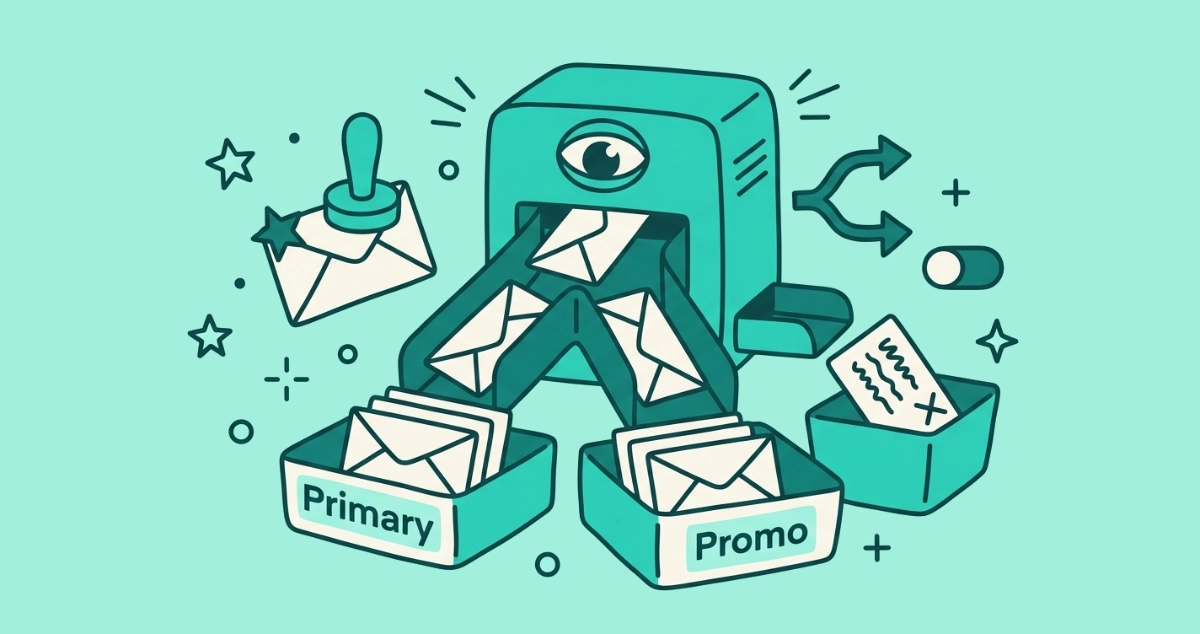
Gmail runs your incoming mail through machine-learning classifiers that decide its category (Primary, Promotions, Social, Updates, Forums), whether it is important, and whether it is spam. The signals are the sender, the content type, and how you and other users have treated similar mail. You can correct every decision, and Gmail learns from the correction.
This is the gatekeeping layer of the AI in your inbox. Two companion pieces cover the rest: one on the AI summaries that condense the mail you receive, and one on the AI now writing the mail before it reaches you. This piece is about the decision made in between, the one that sorts what you see and where.
What is Gmail’s AI inbox categorization?
Gmail’s AI inbox categorization is the machine-learning layer that files every incoming message into a category, tags it with an importance level, and runs it past a spam classifier, all before the mail lands on your screen. Three separate decisions, made in the second between a sender hitting send and you seeing a new-mail count.
Each decision has its own signal, its own place it shows up, and its own way to correct it.
| Decision | What it sorts | Where you see it | How to correct it |
|---|---|---|---|
| Category | Which tab: Primary, Promotions, Social, Updates, Forums | The tab strip above the inbox | Drag the message to another tab |
| Importance | Whether a message counts as important | A yellow marker beside the sender | Click the marker on or off |
| Spam | Whether the mail is spam, phishing, or malware | The Spam folder | Report spam, or Not spam |
None of this waits for your permission. It runs by default on every account, and it runs at scale: Google says its machine-learning models block more than 99.9 percent of spam, phishing, and malware from reaching inboxes, and that a single TensorFlow-based filter catches around 100 million additional spam messages a day, per Google’s Workspace blog (2019). The same machinery that keeps the junk out is the machinery deciding your recruiter’s reply belongs in a side tab.
How does Gmail decide which category an email goes to?
Gmail sorts each message using three kinds of signal: who sent it, what the content looks like, and how people have treated similar mail. Google states the classifier weighs “who the email comes from, what type of content is in the message and how Gmail users have interacted with similar content,” in its Workspace blog on inbox sorting.
There are five categories. Primary holds mail from people, plus anything that does not fit elsewhere. Promotions catches deals and marketing. Social gathers notifications from networks and media sites. Updates collects receipts, confirmations, and automated alerts. Forums holds mailing lists and group threads. A message with tracking links, a big header image, and an unsubscribe footer reads as Promotions to the classifier, whether it came from a store or your child’s school fundraiser.
Two of those three signals are out of your hands. The sender and the content are fixed by whoever wrote the mail. The third, how mail like this gets treated, is partly yours to shape, which is why correcting Gmail works at all.
Why does Gmail mark some emails as important?
Gmail marks a message important when its signals say you personally tend to engage with mail like it. A yellow importance marker appears beside the sender when the classifier makes that call, and an empty marker means it did not.
Google lists the exact signals on its importance markers help page: whom you email and how often, which emails you open, which you reply to, keywords in the mail you usually read, and which messages you star, archive, or delete. The pattern is personal correspondence. A colleague you reply to daily clears the bar easily. A newsletter blasted to fifty thousand people rarely does, because importance keys on your one-to-one habits, not on bulk sends.
This is a different decision from the category. A message can sit in Primary and still carry no importance marker, or land in Updates and get flagged important. Category answers where the mail goes. Importance answers how loudly it gets to ask for you.
Why do real emails land in Promotions or Spam?
Real mail lands in the wrong place when it looks, to the classifier, like the category it got sorted into. Gmail reads structure and formatting as strongly as it reads the sender. A personal message dressed up with a banner image, a bright button, and a tracking pixel carries the fingerprints of marketing, so the classifier files it under Promotions even when a human wrote it to you directly.
Engagement compounds the effect. Google’s own framing is that the system watches how you and others treat similar mail, so a sender you have ignored for months slides down the order and drifts toward a side tab. When enough recipients mark a sender’s mail as spam, that verdict spreads to new recipients of the same sender. The sliver of spam that slips past the filters, and the sliver of real mail wrongly caught, both live in this gray zone where a message sits close to the line.
The Promotions tab is where this bites most people, because it fills fastest. If yours is overflowing and burying the occasional real message, clearing it is a separate job from fixing the sorting, and we walk through it in how to delete all Promotions in Gmail.
How do I fix Gmail’s categorization when it gets it wrong?
You correct Gmail by taking the action it reads as a signal, and it remembers. Every fix below teaches the classifier for future mail from that sender, not just the message in front of you.
- Move the message to the right tab. Drag it from Promotions to Primary, or right-click and choose the tab. Gmail asks whether to do the same for future mail from that sender. Say yes.
- Flip the importance marker. Click the marker beside a message to mark it important, or clear it on mail that does not deserve the flag. Google says this teaches Gmail which mail you think matters.
- Reply or star it. A reply is one of the strongest signals you can send, because it proves a real relationship. Starring works too.
- Add the sender to your contacts. A sender in your contact list reads as familiar, which pulls their mail toward Primary and away from spam.
- Build a filter for the stubborn cases. Open a message, choose “Filter messages like this,” and set “Never send it to Spam” or “Categorize as Primary.” A filter is a hard rule that overrides the classifier’s guess.
- Mark “Not spam” on anything wrongly caught. Open the Spam folder, select the message, and click Not spam. It returns to your inbox, and the sender’s future mail is less likely to be filtered.
Give it a few messages. Gmail’s sorting behaves like a moving average, so one correction nudges it and a consistent pattern of corrections retrains it for good.
What changed with Gmail’s AI in 2025 and 2026?
Gmail’s newest AI moves the inbox from newest-first order to relevance-first order, so the machine’s guess about what matters increasingly decides not just where mail sits, but what you see at the top.
On September 11, 2025, Google announced that the Promotions tab defaults to a “Most Relevant” sort, surfacing brands you engage with and time-sensitive deals ahead of strict newest-first order, per Google’s announcement. You can switch it back to “Most Recent” in the tab’s sort control.
Then on January 8, 2026, Google said Gmail was entering “the Gemini era,” powered by its Gemini 3 model. Part of that is a new AI Inbox view that, in Google’s words, “filters out the clutter so you can focus on what’s most important,” identifying your VIPs “based on signals like people you email frequently, those in your contacts list and relationships it can infer from message content.” Google is giving trusted testers access first. The direction is plain: the gatekeeper is getting more powerful, and its judgment about your priorities is moving from a side tab to the front of the inbox.
Does clearing out senders help the AI sort better?
Yes. The AI can only sort the mail that arrives, so the less unwanted mail you get, the fewer decisions it has to make and the fewer it gets wrong. An inbox that is half newsletters you never read is an inbox you have asked Gmail to triage on your behalf, and every misfile in that pile is a real message the noise pushed down.
Removing senders shrinks the pile the classifier works on. Gmail’s built-in Manage subscriptions panel handles this one sender at a time, and for a large backlog a dedicated tool clears it in one pass.
That is the job Email Unsubscriber does, and it does it without any AI of its own. There is no model reading your mail on our end. The app reads the standard List-Unsubscribe header that bulk senders attach to their messages, not the words inside them, and the scan runs in your browser. We never read, analyze, or monetize your email content. It lists every subscription sender, opts you out in a few clicks, and flags the ones who keep mailing after you leave, for a one-off payment with nothing to cancel.
Gmail’s gatekeepers are staying, and mostly they earn their keep. Knowing how they decide, and correcting them when they miss, keeps the important mail in front of you. Cutting the senders you never wanted gives the AI less to get wrong in the first place.