You open Gmail one morning and there is a new option above your inbox called AI Inbox. Click it and your messages are gone, replaced by a short briefing: a greeting, a list of things to do, and a few topics it says you should catch up on. Your email stopped being a list and became a summary of itself.
Gmail’s AI Inbox is a new Gemini-powered view, announced January 8, 2026, that reshapes your inbox into a personalized briefing instead of a message list. It groups your mail into suggested to-dos and topics to catch up on, highlighting what it judges important. It sits alongside your normal inbox and needs a paid Google AI plan.
What is Gmail’s AI Inbox?
Gmail’s AI Inbox is a separate inbox view, powered by Google’s Gemini 3 model, that presents your mail as a briefing of tasks and topics rather than a chronological list of messages. Google announced it on January 8, 2026, as part of what it called Gmail entering “the Gemini era”.
Google’s own description is that it works “like having a personalized briefing, highlighting to-dos and catching you up on what matters,” and that it “filters out the clutter so you can focus on what’s most important.” In practice you get a screen with a greeting, a count of your mail, and two stacked sections in place of the usual row of senders and subject lines.
Here is why it matters. This is the first time Gmail’s front screen stops being a record of what arrived and starts being a machine’s opinion of what you should deal with. That is a larger change than a summary bolted onto a single thread, because it reorders the entire front page of your inbox before you read a word.
What does the AI Inbox actually show you?
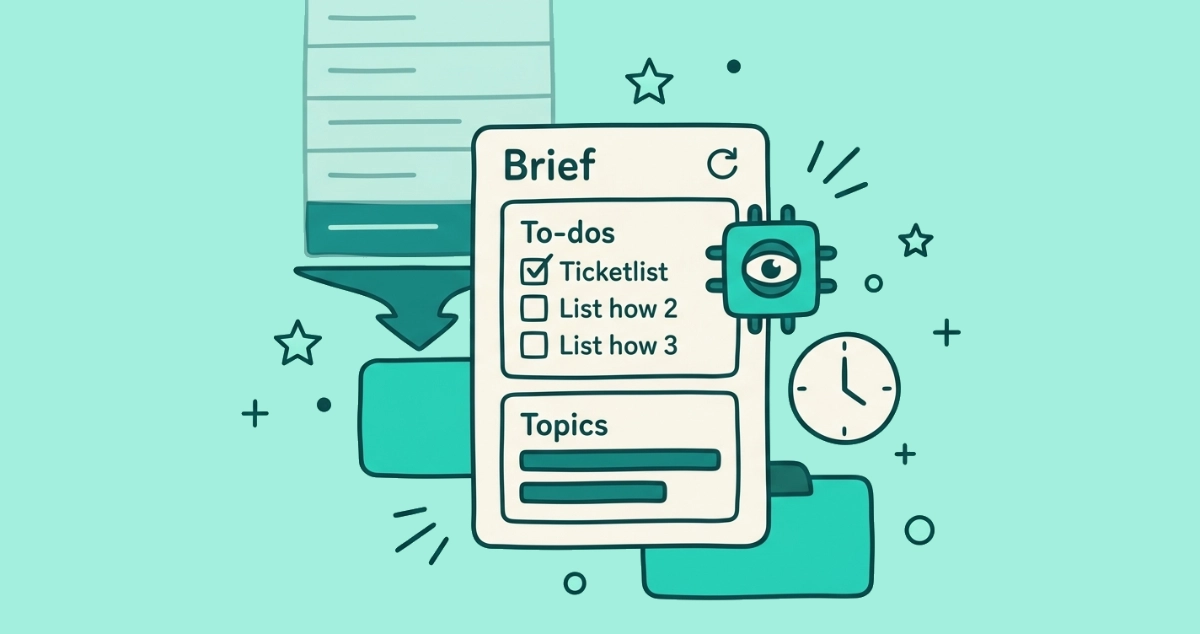
The AI Inbox shows two lists and a header. At the top sits a greeting with a count of your recent mail and a note of when it last refreshed. Below that, Gmail splits what it found into two sections.
- Suggested to-dos. Short, actionable items it pulled out of your mail: a bill due, an appointment to confirm, a reply someone is waiting on. The action shows in bold, with a line of context and a link back to the message it came from.
- Topics to catch up on. Things it judges important but not urgent, grouped by subject with a few bullet points of context. A trip you are planning, an order in transit, a project thread moving along without you.
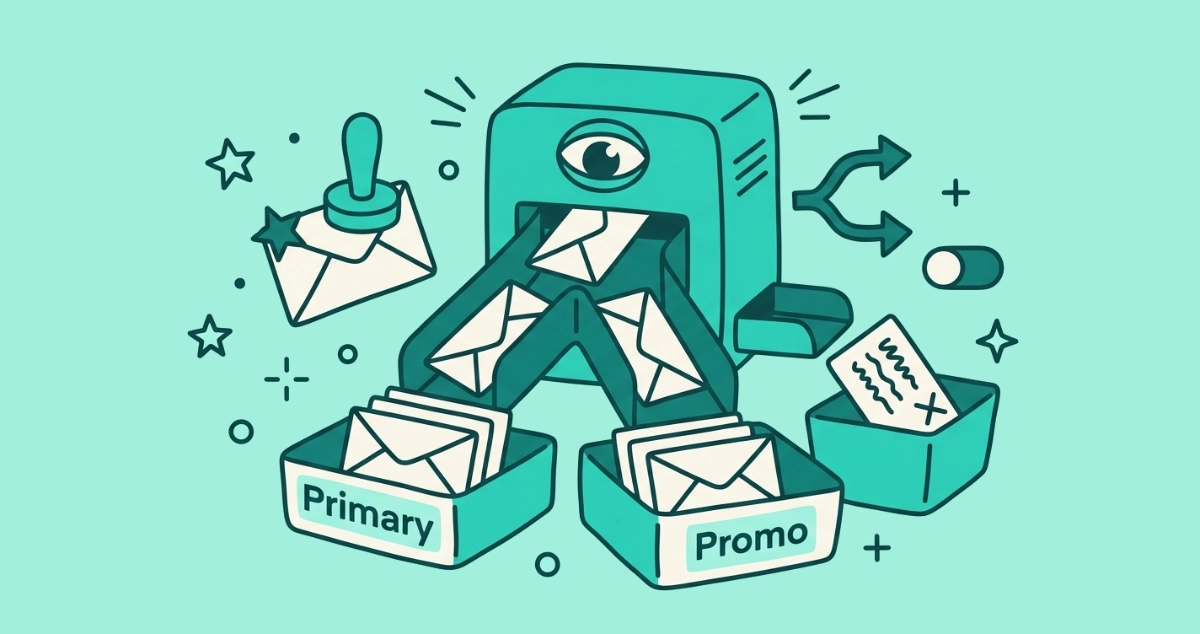
The briefing draws only from your Primary mail. In one hands-on test, Android Authority (2026) found it “filters out promotions, social emails, and spam by default,” which the reviewer called “what the Primary tab should’ve been in the first place.” It does not refresh on its own; you click a refresh button when you want it to look again. And per Google’s Gmail Help (2026), it can take up to seven days for your first set of to-dos and topics to appear.
How is the AI Inbox different from a chronological inbox?
The difference is order and framing. Your normal inbox lists every message newest-first and leaves you to triage. The AI Inbox drops the timeline and shows you a briefing of what Gemini thinks deserves your attention, grouped by task and topic rather than by arrival time.
It is a separate view, not a takeover. On the web it appears above “Inbox” in the left side panel; in the Gmail app it sits in the bottom bar. Your chronological inbox is still there, one tap away, with every message in it. The briefing is a layer over your existing mail, so switching to the AI Inbox does not move, archive, or delete anything. The messages stay exactly where they were.
That makes it a cousin of the summaries Gmail and Apple already added, but a bigger one. A thread summary condenses a single conversation after you open it. The AI Inbox condenses the whole front page before you open anything. Apple built a milder version of the same idea with the Priority section in Apple Mail, which pins urgent mail to the top without hiding the rest.
How does the AI Inbox decide what matters to you?
It ranks people and reads content. Google says the AI Inbox identifies your VIPs “based on signals like people you email frequently, those in your contacts list and relationships it can infer from message content.” Frequent and saved contacts push mail up; a sender you never reply to sinks.
The phrase doing the heavy lifting is “infer from message content.” To decide that a parking notice buried under a vague subject line is a to-do, Gemini has to read the body of that mail, not just the header. Android Authority’s reviewer flagged that as a strength, noting the AI caught “a warning about unauthorized parking from my apartment complex” that a scan of subject lines would have missed.
This sits on top of the sorting Gmail already does before mail reaches you, filing each message into a category and an importance level. We break that gatekeeping layer down in how AI decides what email you see. The AI Inbox is the next step up: not just where a message goes, but whether it earns a line in your morning briefing at all.
Can you rely on the AI Inbox to catch important email?
Not on its own. Treat the AI Inbox as a second pass over your mail, not the only one. The people who have used it longest are blunt about its limits.
Android Authority’s verdict after weeks of use: “you can’t count on the feature to remind you of important dates or tasks,” calling it a “safety net” rather than a dependable tool. The reviewer found it inconsistent across accounts, where the same email got highlighted for one person and ignored for another, and concluded it “probably filters out too much.” Google’s help docs note the AI Inbox does not support attachments, delegated inboxes, or encrypted emails, so anything important riding in those never reaches the briefing.
There is a quieter risk underneath the bugs. When a machine decides what earns a line in your briefing, the mail it leaves out is invisible by default. A missed deadline in your chronological inbox is your own oversight. A missed deadline the AI silently ranked as unimportant is a decision you did not make and did not see. The upside is real: less to wade through every morning. The cost is that you are trusting Gemini’s read of “important,” and that read is a prediction, not a promise.
Who gets the AI Inbox, and is it free?
The AI Inbox is not free, and for most of 2026 it has rolled out slowly behind Google’s paid AI plans. Google gave Trusted Testers access first in January 2026, then opened a beta to Google AI Ultra subscribers by late March. By June 2026 it was expanding to Google AI Pro and AI Plus subscribers as well.
So whether you see it depends on your plan. A free Gmail account does not get the AI Inbox today, though Gmail’s other Gemini features split differently: thread summaries are free for everyone, while asking your inbox a question with an AI Overview needs a paid Pro or Ultra plan. If an AI Inbox option has appeared in your side panel or bottom bar, you are on a plan that includes it. If it has not, that is why.
How do you switch back to your normal inbox?
You switch back the same way you switched in. Because the AI Inbox is a separate view rather than a replacement, returning to your normal mail is one click.
- On the web, click “Inbox” in the left side panel, below “AI Inbox.” Your chronological list returns in full.
- On the Gmail app, tap “Inbox” in the bottom bar instead of “AI Inbox.”
- To remove the wider Gemini features, turn off Gmail’s smart-features settings, the same lever that governs summaries and other Gemini tools. Be warned that Google bundles older conveniences like spellcheck and predictive text into that setting, so switching it off takes those with it.
For most people there is nothing to disable. The AI Inbox does not force itself in front of your messages; it waits in the panel until you choose it. If you never click it, your inbox behaves exactly as it did before.
Does the AI Inbox make your inbox smaller?
No. The AI Inbox rearranges and summarizes the mail you already get. It does not stop any of it from arriving. If forty newsletters land every morning, the briefing quietly sets most of them aside and shows you three to-dos, but forty newsletters still arrived, still count against your storage, and still sit in the chronological inbox underneath. Gemini got better at hiding the pile. The pile is the same size.
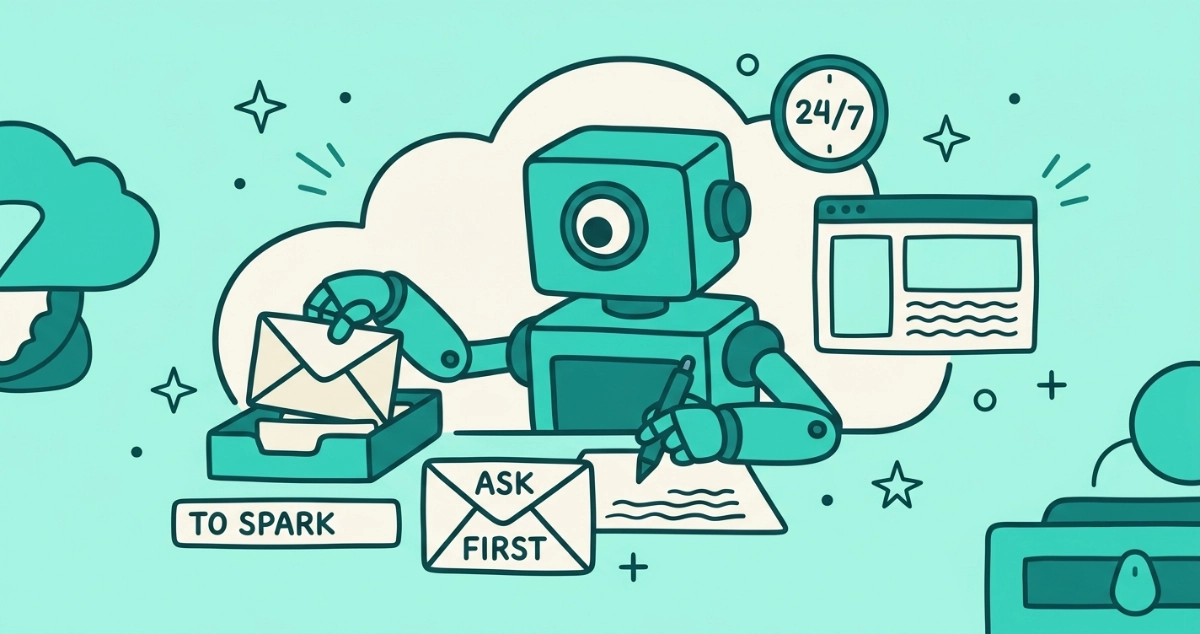
The only thing that shrinks it is cutting the senders, and that is a separate job from anything the AI Inbox does. It is also where this whole shift is heading next: an assistant that acts on your mail rather than just describing it, which we cover in what a 24/7 AI agent in your inbox actually does.
Email Unsubscriber takes the other route. It has no AI in it and does not read the words in your mail. It reads the standard List-Unsubscribe header that bulk senders attach to their messages, the scan runs in your browser, and it lists every subscription sender so you can opt out in a few clicks. We never read, analyze, or monetize your email content. You pay once with nothing to cancel. A briefing makes a noisy inbox easier to skim. Removing the senders makes it quieter for good.