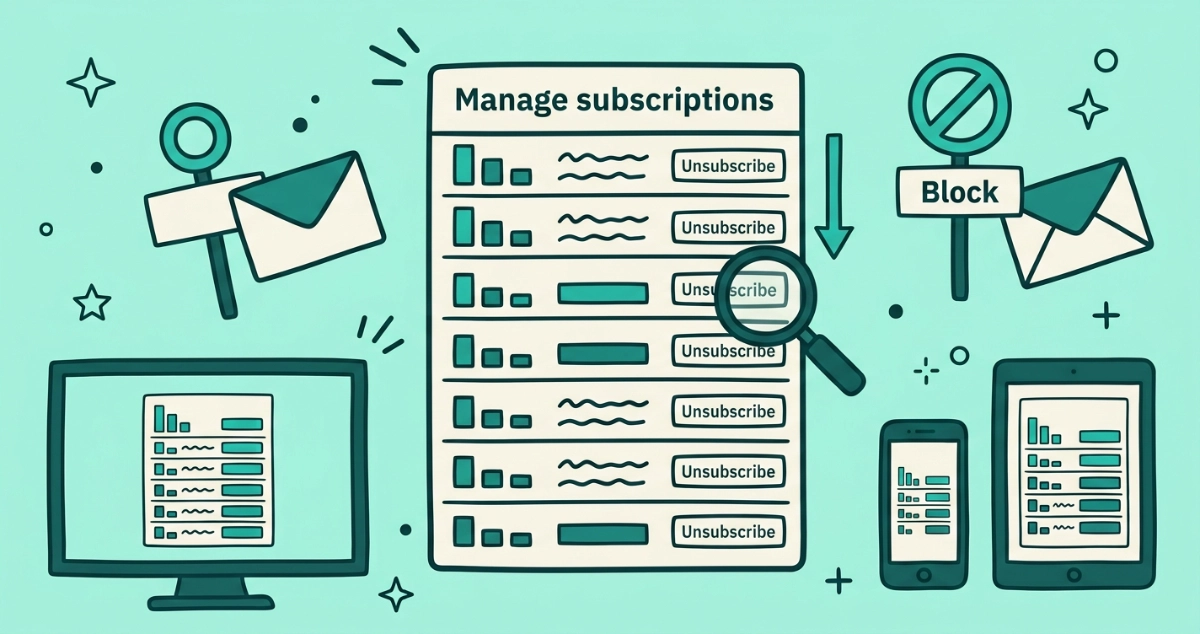
You finally found the button ewveryone told you about. Gmail’s Manage subscriptions panel lists the senders flooding your inbox and lets you leave them without opening a single email. It is genuinely useful, and it also stops short of a few things you might expect. This guide walks the whole feature, every platform, and the exact points where it hands the job back to you.
Gmail’s Manage subscriptions panel, launched July 2025, lists your newsletter and promo senders sorted by how often they email you and unsubscribes with one click. Open it from the left menu under Trash on web, Android, and iOS. It works one sender at a time, Gmail only, and leaves existing mail in place.
What is Gmail’s Manage subscriptions panel?
Manage subscriptions is a built-in Gmail view that gathers the senders Gmail recognizes as subscriptions into one list and lets you unsubscribe from each with a single click. Google announced it on July 8, 2025 in a post on the Gmail blog, describing a place to “organize your subscription emails and easily unsubscribe from the ones you no longer want.”
The panel matters because it changes where the work happens. Before it shipped, you hunted the unsubscribe link inside each newsletter one by one. Now Gmail reads the unsubscribe signal your senders already attach to their mail and turns it into a tidy list you can act on from one screen. No sender website opens. You do not fill in a form or confirm your address twice.
How do you open Manage subscriptions on desktop, Android, and iOS?
The entry point is the same three-line navigation menu on every platform, sitting under Trash in the list of folders and labels. The exact taps differ slightly by device.
On the desktop web
- Open the left menu. Click the three-line (hamburger) icon in the top-left corner of Gmail to expand the navigation panel.
- Click More. Scroll to the bottom of your folders and labels and click More to reveal the hidden items, per Gmail Help.
- Select Manage subscriptions. It appears in the expanded list, near Trash. Clicking it opens the sender list in the main pane.
On Android
- Open the Gmail app and tap the three-line menu in the top-left to slide out the navigation drawer.
- Scroll to Manage subscriptions. It sits below Trash in the drawer.
- Tap it to load the same frequency-sorted list you get on the web.
On iOS
- Open the Gmail app and tap the three-line menu in the top-left.
- Find Manage subscriptions under Trash in the drawer.
- Tap it to open the list.
Expected outcome: a single scrollable list of your subscription senders, ready to work through. If the item is missing, skip to the troubleshooting section below, because the feature rolled out in waves and some accounts got it late.
How does the frequency sorting work?
Gmail sorts the panel by your most frequent senders and shows, next to each one, how many emails that sender delivered in the past few weeks. The heaviest senders float to the top, so the list opens with the ones worth cutting first. Google’s Workspace update log describes the list as “active subscriptions sorted by the most frequent senders alongside the number of emails they’ve sent you in the past few weeks.”
Tap or click a sender and Gmail pulls every recent message from them into one view. You confirm you actually want out before you act, which spares you unsubscribing from the one newsletter you meant to keep. The count sits on a rolling recent window rather than your lifetime total. A sender that blasted you daily last quarter and then went quiet can show a low number now, so ranking is a snapshot of who is loud this month, not a full history of who you signed up with.
What does the Unsubscribe button actually do?
Clicking Unsubscribe tells Gmail to send an opt-out request to the sender on your behalf, using the unsubscribe address the sender published in the email itself. This is the same mechanism behind the per-message Unsubscribe link Gmail shows at the top of a newsletter, and it leans on the one-click unsubscribe standard, RFC 8058, that large senders now have to support.
Two things happen next, and both are worth knowing. Google notes it can take a few days for the sender to process your request, so a message or two may still land before the flow fully stops. Once the opt-out is processed, Gmail can route further mail from that sender to spam automatically. The button is an exit request, not a delete. Any emails already in your inbox stay exactly where they are until you clear them yourself.
Unsubscribe versus Block: what’s the difference?
Unsubscribe leaves a list cleanly; Block hides a sender without leaving the list. Gmail shows Block instead of Unsubscribe when a sender does not publish a valid unsubscribe signal, which is common for the senders least likely to honor a request anyway.
| Action | Leaves the list? | Where future mail goes | Best for |
|---|---|---|---|
| Unsubscribe | Yes, Gmail sends the opt-out | Sender stops after a few days | Real newsletters and promos you once signed up for |
| Block | No, you stay subscribed | Straight to spam, on your side only | Spammers with no working unsubscribe |
Google’s Gmail Help is explicit that “if you block a sender, it doesn’t automatically unsubscribe you from their mailing list.” Block is a filter you control, so the sender keeps mailing and Gmail keeps diverting. Reach for Unsubscribe when the sender is a legitimate company. Reach for Block when a sender has no clean exit and refuses to stop.
When did Manage subscriptions roll out, and why don’t I have it?
Google shipped the panel in staggered waves through July 2025, and each wave took up to 15 days to reach every account, so a late arrival was normal rather than a bug. The Workspace update log lists the dates:
- Web: July 8, 2025 for rapid-release domains, July 28, 2025 for scheduled-release domains.
- Android: July 14, 2025, then July 31, 2025.
- iOS: July 21, 2025 for both release tracks.
The feature reached personal Google accounts, Workspace customers, and Workspace Individual subscribers, but Google gated the initial rollout to select countries, so region was the most common reason an account waited. A handful of users reportedly saw an early version as far back as April 2025. If your account still lacks the panel long after these dates, the usual culprits are an unsupported region, an out-of-date Gmail mobile app, or a Workspace account on a slower release track.
What can’t Gmail’s Manage subscriptions panel do?
The panel is a solid first stop and a deliberately narrow tool. It unsubscribes, and it does little else. Knowing the gaps up front saves you from expecting a cleanup it was never built to do.
- No select-all. You act one sender at a time. For a backlog of hundreds, that is a lot of individual clicks with no batch option.
- Gmail only. A separate Outlook, Yahoo, or iCloud inbox is untouched. The panel lives inside Gmail and sees nothing outside it.
- No history or audit log. Once you unsubscribe, the sender leaves the list and there is no record of who you opted out of or when.
- No violation detection. The panel cannot flag a sender who ignores your opt-out and keeps mailing past the legal grace period. You have to notice that yourself.
- Existing mail stays. Unsubscribing does not remove the pile already sitting in your inbox.
- It only sees recognized subscriptions. Senders without a valid unsubscribe signal show Block, not Unsubscribe, and never appear as a clean-exit row.
This is the gap a dedicated app fills. Email Unsubscriber reviews every sender across your inbox in one pass, works on Gmail and personal Outlook accounts, flags senders who keep emailing after you leave, and keeps an audit log of every unsubscribe. The scan runs in your browser, so your email content never reaches our servers, the access is read-only, and the session expires in about an hour with no persistent token. The architecture is documented on our security page and the auth service is open source. Gmail’s panel is free and worth using for a light pass. For years of buildup, or to catch the senders who ignore you, a browser-based review saves the repetitive clicking. For the other built-in Gmail routes, the per-email link and search-and-delete, see the Gmail mass-unsubscribe guide.
Troubleshooting: the panel is missing or a sender isn’t listed
Most Manage subscriptions problems trace to one of two causes, and both have quick fixes.
The panel is missing entirely. Work through these in order:
- Click More on desktop. The item hides under More at the bottom of the folder list. Expand it before assuming it is gone.
- Update the Gmail app. Older app versions predate the feature. Update to the latest release from the App Store or Play Store, then reopen the drawer.
- Check your region and wait. Google gated the rollout by country and gave each wave up to 15 days. If your region is late, the panel appears on its own.
- Workspace accounts follow a release track. A business or school account can arrive later than a personal one depending on its release schedule.
A sender isn’t in the list. The panel only surfaces senders Gmail classifies as bulk subscriptions with a recognized unsubscribe signal. A sender goes missing when:
- It sends as a personal contact or a one-off, not a recognized subscription.
- It publishes no valid
List-Unsubscribesignal, in which case Gmail offers Block rather than an unsubscribe row. - You already blocked it, or its mail is filtered to spam.
- It stopped mailing recently and fell out of the past-few-weeks frequency window.
For those senders, open one of their emails and use the footer unsubscribe link, then confirm the link is genuine before you click it.
The takeaway
Gmail’s Manage subscriptions panel is the right first move for anyone drowning in newsletters. Open it from the three-line menu under Trash on web, Android, or iOS, work down the frequency-sorted list, and unsubscribe from the loudest senders in a few clicks. Know its edges: one sender at a time, Gmail only, no history, no way to catch a sender who ignores you, and existing mail left in place. When the backlog outgrows a one-at-a-time list, or you want to spot the senders who keep mailing after you leave, a browser-based tool that reviews everything at once picks up where the panel stops.