You connected some app to your Google account once. Maybe a calendar sync, maybe an old unsubscribe tool you tried for an afternoon and forgot. Now you want the honest answer to a plain question: who can still read your Gmail, and how do you cut them off? The whole list lives on one page, and clearing it takes about a minute.
To revoke an app’s access to your Google account, open myaccount.google.com/connections, click the app, open its details, and choose Remove access, then Confirm. Access stops the moment you confirm. As of 2026 this is the single page that lists every app you approved to reach your Gmail, Drive, or Calendar.
This is the maintenance task nobody schedules and everybody should. An app you approved in 2021 can still hold read access to your mailbox today, long after you stopped using it. Below is how to find that list, read what each app can actually do, and remove the ones that no longer earn their place.
How do I see which apps have access to my Google account?
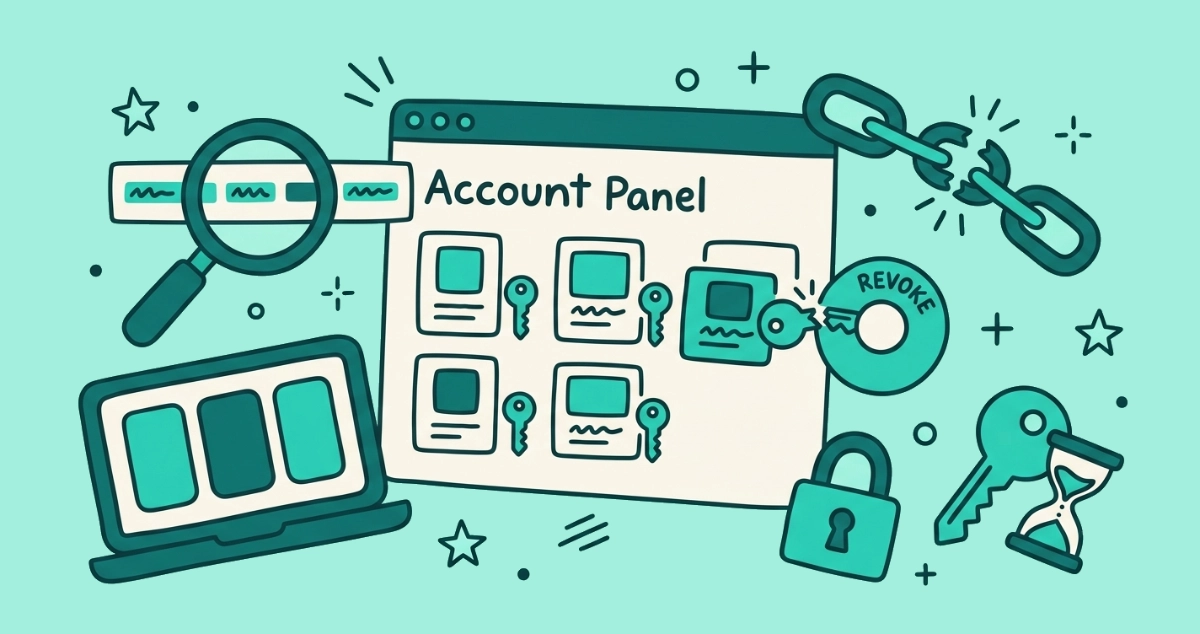
Every app you have connected sits on one page: myaccount.google.com/connections. Google groups the list into apps you use “Sign in with Google” for and apps you granted access to your account data, which is the group that matters most for your inbox.
- Open the connections page. Go to
myaccount.google.com/connectionsin a browser signed in to the account you want to check. You can also reach it from your Google Account, then the Security tab, then the Third-party apps and services section, where See all connections opens the same page. - Read the list. Each entry is an app or service you approved at some point. Google shows the app name and a short description of what it can touch, from basic profile data up to your Gmail and Drive.
- Open one for details. Click an app and choose See details. The panel expands to show what the app can access and the date you first approved it, which is often the moment you realize how long a forgotten tool has been holding the keys.
When you finish, you have a complete inventory of everything that can reach your account. Most people find at least one entry they do not recognize.
How do I revoke an app’s access?
Click the app, choose Remove access, and confirm. The change takes effect immediately, with no waiting period and no email to the app’s owner.
- Open the app entry on the connections page and expand its details.
- Choose the removal option. For an app that reads your account data, the button reads Remove access. For a login-only connection, it reads Stop using Sign in with Google, and for an account link it reads Delete link. Pick the one shown for that entry.
- Confirm. Google asks you to confirm, then cuts the connection. The app’s next attempt to reach your inbox simply fails.
That is the entire process on desktop. On a phone, open the Google app, tap your profile picture, go to Manage your Google Account, then Security, and scroll to the same third-party apps section. The buttons and confirmation steps match the desktop flow.
How can I tell what an app is actually allowed to do?
Read the access line on the app’s details panel before you decide. Google describes access in plain language, and the gap between the descriptions is the whole story. “View” or “see” your data means read-only. “Manage” your data means the app can also edit, send, and delete.
Under the plain-language labels sit OAuth scopes, the specific slices of your account an app is allowed to touch. For Gmail, the scopes fall into three tiers, and the distance between them is large:
| What the details panel implies | What the app can do | Gmail scope |
|---|---|---|
| View or read your mail | See messages, labels, and settings. Cannot send, change, or delete anything. | gmail.readonly |
| Manage your mail | Read, compose, send, and move or label mail. Cannot permanently delete past the trash. | gmail.modify |
| Full access to your mail | Everything above, plus immediate permanent deletion that skips the trash. | mail.google.com |
Those scope descriptions come from Google’s own Gmail API scope documentation. A tool whose only job is to list your subscriptions has no reason to hold anything past read-only. If an app that just cleans your inbox is sitting on “manage” or full access, that is the entry to question first. The excess access does not prove bad intent, but it widens what a breach or a change of ownership could expose.
Does removing access delete the data an app already has?
No. Revoking access stops future access; it does not reach back and delete data the app already copied. Google states this directly on its help pages: “If you remove access, the app can’t access your Google Account,” and separately, deleting a connection “doesn’t delete your data on the app.”
The distinction matters most for cloud tools. If an app pulled your messages onto its own servers to work on them, revoking access closes the door but leaves the copy behind. Deleting that copy is a separate step, one you make by asking the company to erase your data under GDPR or CCPA. This is exactly why where an app processes your mail decides how much revocation actually protects you. A tool that reads your inbox on its own servers leaves a copy you now have to chase; a tool that reads it in your browser and stores nothing leaves nothing to chase. We walk through that difference in why we never store your emails.
How often should I audit which apps can read my inbox?
A few times a year is enough for most people, with one extra rule: run the check after every free trial or one-off tool you try and stop using. The connections page takes a minute, and the payoff is removing standing access you no longer benefit from.
When you look, scan for three things. Apps you no longer use are pure downside, since they hold access with no upside to you. Names you do not recognize deserve a click into their details before you decide. And any app holding broader access than its job needs is worth trimming, because the narrower the access, the smaller the damage if that app is ever compromised. Reviewing connected apps is also part of a wider account check when something feels off, which we cover in is my email hacked. Old, forgotten integrations are the ones that turn into trouble, precisely because nobody is watching them.
What does one-click revocation tell you about a well-built app?
The fact that you can cut an app off in one click is a property of OAuth itself, and a well-built app leans into it rather than working around it. The apps worth trusting ask for the narrowest scope that does the job, keep no standing key to your inbox, and make it easy to leave. Revocability is not a favor they grant you. It is the design working as intended.
Our own tool is built to sit lightly on that list. We request read-only access, so we can view the senders in your inbox but never send or delete anything. We keep no refresh token, so there is no standing credential to renew our access in the background. According to Google’s authentication documentation, a user access token “automatically expires after one hour,” and because we ask for nothing more, our access ends on its own when that hour is up. You can still revoke us by hand on the same connections page any time you like, which makes manual revocation the backup to an access window that was already going to close itself.
Whether a given unsubscribe app deserves your trust in the first place is a separate decision from the mechanics of cutting it off, and it turns on scope, processing location, and how the company makes money. We lay out that whole checklist in are email unsubscribe apps safe. If read-only, in-browser, revocable access is the trade you want, you can connect your inbox and see it work, then remove access the moment you are done.
The takeaway
Auditing app access is a one-minute habit with a large payoff. Open myaccount.google.com/connections, read what each app can reach, and remove anything you no longer use or never recognized. Remember that revoking stops future access but does not erase data a cloud app already holds, so favor tools that never took a copy to begin with. Do this a couple of times a year, and no forgotten app keeps a quiet key to your inbox.