You never accepted anything, yet a strange event is sitting on your Google Calendar for tomorrow at 3 PM, usually with a link or a phone number and a title like “Your payment is pending.” That is calendar spam, and it does not behave like the junk in your inbox. It shows up on your schedule on its own.
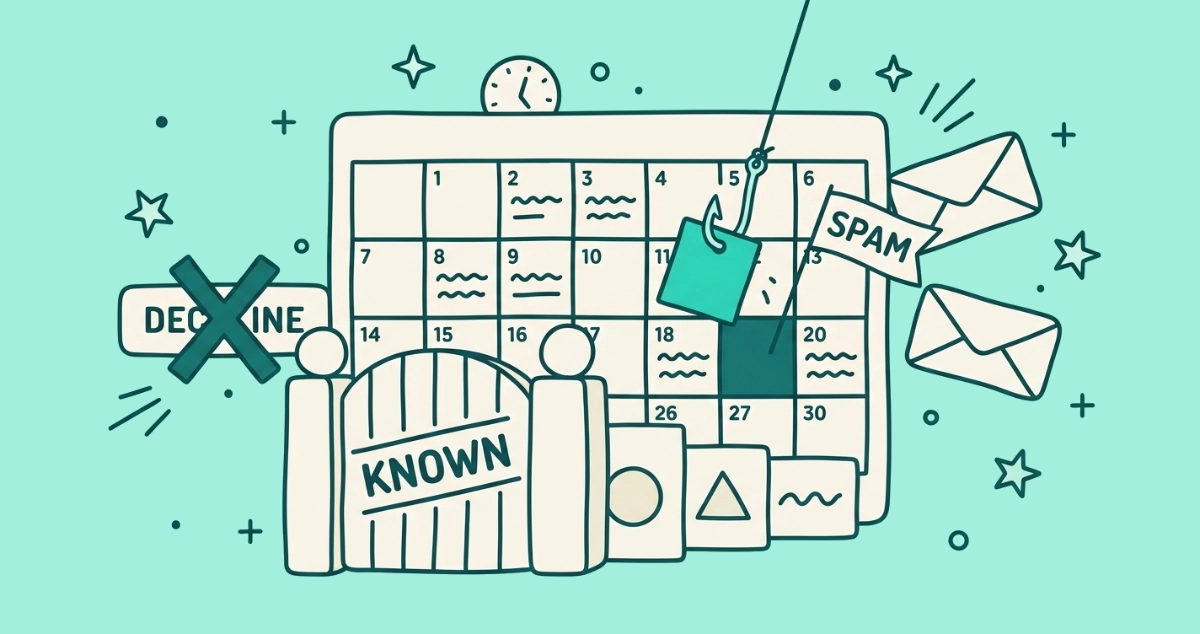
Open Google Calendar settings, go to General, then Event settings, then “Add invitations to my calendar,” and choose “Only if the sender is known.” That stops unknown senders from auto-adding events. For invites already on your calendar, open the event, click More actions, and select Report as spam. Do not click Decline.
Why do spam events show up on my Google Calendar without me accepting?
Because your calendar is set to add invitations from everyone, so any invite attaches itself as a real event before you ever open it. Google Calendar has a single setting that decides which invitations land on your grid. On the permissive option, “From everyone,” each invitation becomes an event complete with pop-up reminders, whether or not you know the sender and whether or not the email itself was routed to spam.
Spammers built a whole tactic around that behavior. They blast invitations to scraped address lists, the event auto-adds for anyone still on the open setting, and the reminder does the advertising for them at the time they picked. According to Google Calendar Help, Google now sets new personal accounts to “Only if the sender is known,” but plenty of older accounts still sit on the old default. If events you never touched keep appearing, that setting is almost always the reason.
Should I decline a spam calendar invite?
No. Do not tap Decline, and do not tap Accept or Maybe either. When you RSVP to a Google Calendar event, your response can send a notification straight back to the organizer. On a spam invite, that reply confirms a real person reads this address and acts on invitations, which marks you as a better target and tends to bring more spam rather than less.
Berkeley Lab’s IT team put it plainly in an October 2025 phishing alert: “Do not select ‘Accept’ or ‘Decline’. This confirms your email address is active and can lead to more spam.” The safe move is to report the event, which removes it without sending the spammer anything. If clicking things inside suspicious mail is a reflex worth breaking, our guide on whether it is safe to click unsubscribe walks through the same instinct in your inbox.
How do I stop spam calendar invites on the web?
Change one setting so only people you already know can auto-add events to your calendar.
- Open Settings. In Google Calendar on the web, click the gear icon at the top right and choose Settings.
- Open Event settings. In the General tab, click Event settings to expand it.
- Find “Add invitations to my calendar.” Google offers three options under this heading.
- Choose “Only if the sender is known.” This adds an event automatically only when the sender is in your contacts, part of your organization, or someone you have interacted with before.
After you save, unknown senders can no longer plant events on your grid. Their invitation arrives as a plain email you can ignore, and nothing shows on your schedule until you decide to add it. There is a stricter third choice, “When I respond to the invitation in email,” which adds an event only after you reply to the notification. One caveat from Google’s documentation: the change applies to new invitations only, so you still need to clear out anything already sitting on your calendar.
How do I change this on the Android or iPhone app?
The same setting lives in the Google Calendar mobile app. Open the app, tap the menu button (three lines, top left), scroll down to Settings, tap General, then tap “Add invitations to my calendar” and select “Only if the sender is known.” The choice syncs with your web calendar, so you only need to set it once per account. On Android you can also open the menu and uncheck any calendar you did not create, which hides events pushed through a rogue subscription.
How do I remove a spam event that’s already on my calendar?
Report it as spam. Do not delete it first, and do not RSVP.
- Open the event on your calendar.
- Click More actions, the three-dot menu inside the event.
- Select Report as spam, then confirm.
According to Google Calendar Help, reporting an event removes it from your calendar, and if the event recurs, the entire series goes with it. Google also blocks that organizer from sending you future invites and feeds the report into its spam filters, which sharpens detection for everyone. Crucially, no reply email is sent to the spammer. That silence is the whole difference between reporting and declining. One tells the sender nothing; the other tells them you are home.
What if there’s no “Report as spam” option?
Some spam events cannot be reported, because reporting only works on events that arrived through Google Calendar itself. Google’s help notes that “calendar events created by another provider, app, or service can’t be reported as spam,” so the button simply will not appear on those. A spammer who pushed the event through a different calendar system slips past the report tool.
When that happens, delete the event, and do not click any link or call any number printed inside it. Then check your calendar list on the left (or in the mobile menu) and uncheck or remove any calendar you do not recognize, since a subscribed rogue calendar can keep repopulating events after you delete them one by one.
Are Google Calendar spam invites dangerous?
They can be, and many are phishing in a calendar wrapper. The event title and description are the payload. A common version claims a payment is pending, a package is held at customs, or your account needs verifying, then drops a link or a phone number right into the reminder. Follow the link and you land on a credential-harvesting page; call the number and you reach a scam call center reading from a script.
The defense is the same one Berkeley IT recommends: do not click links, call numbers, or reply. Report the event and move on. The trap has the same anatomy as a fake unsubscribe page, a trusted-looking prompt hiding a hook, only here it is delivered through your schedule instead of your inbox. Treating every unexpected invite as bait until proven otherwise costs you nothing and closes the whole attack.
Does this also stop the newsletter flood in my inbox?
No. Calendar spam and inbox spam are two separate problems with two separate fixes. The “known senders” setting only governs what attaches to your calendar. It does nothing about the years of newsletters, promos, and receipts piling up in Gmail or Outlook.
For a sender you actually signed up with, the clean exit is to unsubscribe; for a stranger, marking as spam or blocking the address is safer. Doing that across hundreds of senders by hand is the slow part. Email Unsubscriber handles the email side: it scans your Gmail or personal Outlook in your own browser, lists every subscription sender in one place, and fires real one-click unsubscribes where senders support them. Your email content never reaches our servers, and we never read, analyze, or monetize it. Lock down the calendar setting first, then clear the inbox backlog.
The takeaway
Calendar spam auto-adds because your invitation setting is too open, not because you did anything wrong. Switch “Add invitations to my calendar” to “Only if the sender is known” on both web and mobile, report existing spam events with the More actions menu, and never tap Decline. Declining confirms your address is live and invites more of the same. Reporting removes the event and tells the spammer nothing. Then handle your inbox separately, because the calendar fix stops the events, not the flood of email underneath them.