You hit Send, and your stomach drops. Wrong recipient, a typo in the opening line, the attachment you forgot, or a reply-all you meant to keep to one person. The next thought is always the same. Can you pull it back?
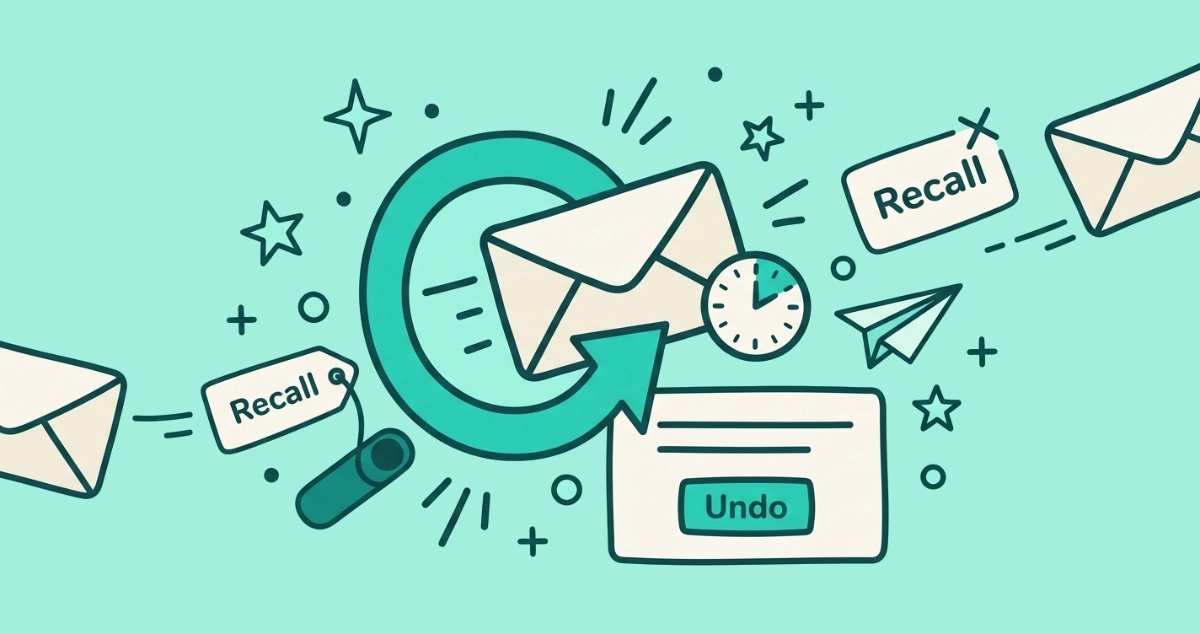
Two different tools. Gmail and Outlook.com hold a message for a few seconds after you press Send, so clicking Undo cancels it before it leaves. Outlook’s Recall This Message tries to delete an email already delivered, but only inside the same Microsoft 365 organization, and it often fails. Nothing recalls a message already delivered to an outside address.
Can you unsend an email after you send it?
Sometimes, and it comes down entirely to timing. Two mechanisms get called “unsend,” and they work nothing alike.
The first is a cancel window. Gmail and Outlook.com wait a few seconds before they actually hand your message to the mail server, so an Undo button can stop it while it is still on your side. Nothing was ever delivered, which is why this one is reliable.
The second is recall. Outlook asks the recipient’s mail server to reach into their mailbox and delete a message that already arrived. That depends on the other side cooperating, which is why it is a long shot. The moment a message reaches an outside provider such as Gmail or a stranger’s company server, neither tool can touch it.
How do I unsend an email in Gmail?
Click Undo in the “Message sent” popup before the timer runs out. Gmail delays every send by a few seconds specifically so this is possible.
- Watch the bottom-left corner. Right after you send, Gmail shows a Message sent bar with Undo and View message.
- Click Undo. Gmail cancels the send and reopens the message as a draft so you can fix or delete it.
- Resend or discard. Correct the typo, add the attachment, change the recipient, then send again, or throw the draft away.
The recipient never sees anything, because the message was never delivered. The catch is speed: Gmail Help sets the default window to just five seconds, so you have to catch the mistake fast. If you routinely need more time, widen the window before you ever need it.
How do I make the Gmail Undo Send window longer?
Change the send cancellation period to 30 seconds in settings. It is the single most useful change most people never make.
- Open Settings. Click the gear icon in the top-right, then See all settings.
- Stay on the General tab. It is the tab that opens first.
- Find Undo Send. Next to it, choose a Send cancellation period of 5, 10, 20, or 30 seconds.
- Save Changes. Scroll to the bottom of the page and click Save Changes, or the setting will not stick.
From then on, every send gives you up to half a minute to catch it. While you are in this menu, it is worth a glance at the other housekeeping controls; if Gmail is also warning you about a full quota, Gmail storage full walks through clearing it. The window costs you nothing except a short delay on messages you meant to send anyway.
How do I recall an email in Outlook?
Open the sent message and use Recall Message, but only if you are on a work or school account. Recall is an Exchange feature, and it comes with strict conditions covered in the next section.
- Go to Sent Items. Open the folder and find the message.
- Open it in its own window. In classic Outlook, double-click the message; in new Outlook or Outlook on the web, open it fully.
- Select Recall Message. Find the option on the ribbon or in the message menu and confirm the dialog.
- Read the recall report. Usually within 30 seconds, Outlook emails you a Message Recall Report telling you whether the recall worked for each recipient.
According to Microsoft’s recall documentation, recall runs on new and classic Outlook for Windows and Outlook on the web. It does not work from Outlook.com or any personal account, which is a large asterisk we come back to below.
Why do Outlook recalls usually fail?
Because every condition has to line up at once, and usually one does not. Microsoft is blunt about the requirements: recall works only when both you and the recipient have a Microsoft 365 work or school account in the same organization, and the recipient has not opened the message yet.
That leaves a long list of ways it breaks:
- The recipient already read it. Recall cannot delete a message someone has opened.
- The recipient is outside your organization. Personal accounts like Gmail, Hotmail, and Outlook.com cannot be recalled at all, and neither can anyone at another company.
- The account or client is not supported. POP and MAPI accounts, Outlook for Mac, and some organizations do not support recall.
- The message is protected. Emails secured with Azure Information Protection cannot be recalled.
When a recall does fail, Outlook keeps retrying for up to 24 hours before it gives up. As of 2026, Microsoft is rolling out cross-tenant message recall, which lets a recall reach across two organizations. It stays off by default, and it only works when the receiving company’s admin has explicitly allow-listed your organization. It will not help you unsend a message to a personal Gmail or a stranger’s inbox.
Can you unsend an email in Outlook.com or a personal account?
Yes, but through Undo send, not recall. Recall is the work and school feature. Personal Outlook.com accounts get the same kind of cancel window Gmail has, and it is the tool that actually matters for a personal Microsoft inbox.
- Open Settings. Click the gear icon, then go to Mail.
- Open Compose and reply. Scroll to the Undo send section.
- Set the window. Drag the slider to a cancellation period of up to ten seconds and save.
After that, sending shows a short toast with an Undo button, and clicking it cancels delivery before the message leaves. Like Gmail’s Undo Send, it works because the message is briefly held rather than reached back from a recipient’s mailbox. That is why it is dependable and recall is not.
Gmail Undo Send vs Outlook recall: what is the difference?
One cancels a message before it leaves; the other tries to claw one back after it arrives. That single difference explains why one is reliable and the other is a gamble.
| Gmail / Outlook.com Undo Send | Outlook Recall This Message | |
|---|---|---|
| What it actually does | Cancels the message before it is sent | Deletes a message already delivered |
| Time you have | 5 to 30 seconds (a set window) | Until the recipient opens it |
| Works with outside recipients? | Not needed, nothing was sent yet | No, same organization only |
| Account type | Any Gmail or Outlook.com account | Microsoft 365 work or school only |
| Reliability | High, the message never left | Low, most conditions rarely hold |
| Where to set it up | Settings, before you need it | Sent Items, after you send |
Bottom line: for everyday personal email, the cancel window is the only one you can count on, so set it to its maximum today. Recall is a bonus that occasionally saves a work email sent to a colleague down the hall, and almost nothing else.
What can you never unsend?
Anything already delivered to an outside provider. Once your message lands on Gmail’s servers, a recipient’s company Exchange, or any mailbox outside your own organization, no button removes it. A copy now sits on hardware you do not control.
This is the honest limit that no tool and no trick gets around. Screenshots, forwards, and downloads make it permanent the moment someone acts on the message. Treat the cancel window as your real safety net, and treat everything past it as sent for good.
What to do when you cannot take it back
Send a short correction rather than a recall. For an external recipient a recall does nothing anyway, and inside an organization a failed recall can draw more attention to the original by flagging it. A plain follow-up (“Please ignore my last message, the correct figure is below”) is faster and calmer than any recall attempt.
Recall and Undo Send both fix a message you sent by mistake. The other kind of email you never wanted, the newsletters and promos flooding in, is a different problem with a different fix. You do not undo those one at a time; you unsubscribe at the source, ideally without even opening them so nothing renders while you clean up. It helps to know what actually happens when you unsubscribe, since some senders keep mailing during a legal grace period. For years of buildup across dozens of senders, Email Unsubscriber reviews every subscription in one pass, with the scan running in your browser and read-only access that expires in about an hour.
The takeaway
You can unsend an email, but only in the seconds before it leaves. Set Gmail’s Undo Send to 30 seconds and Outlook.com’s Undo send to its maximum today, while you are thinking about it, because the window has to exist before you make the mistake. Outlook’s Recall This Message is a work-account feature that needs the recipient in your own organization and the message still unopened, so treat it as a rare bonus rather than a reliable safety net. Once a message reaches an outside inbox, it is delivered for good.