You want off a newsletter, but you would rather not open the thing to do it. Opening a marketing email is not a neutral act. The moment it renders, a hidden pixel can report that you were there, and a live address is worth more to the sender than a quiet one. So the instinct to unsubscribe without touching the message is a good one, and your mail app already has the tools for it.
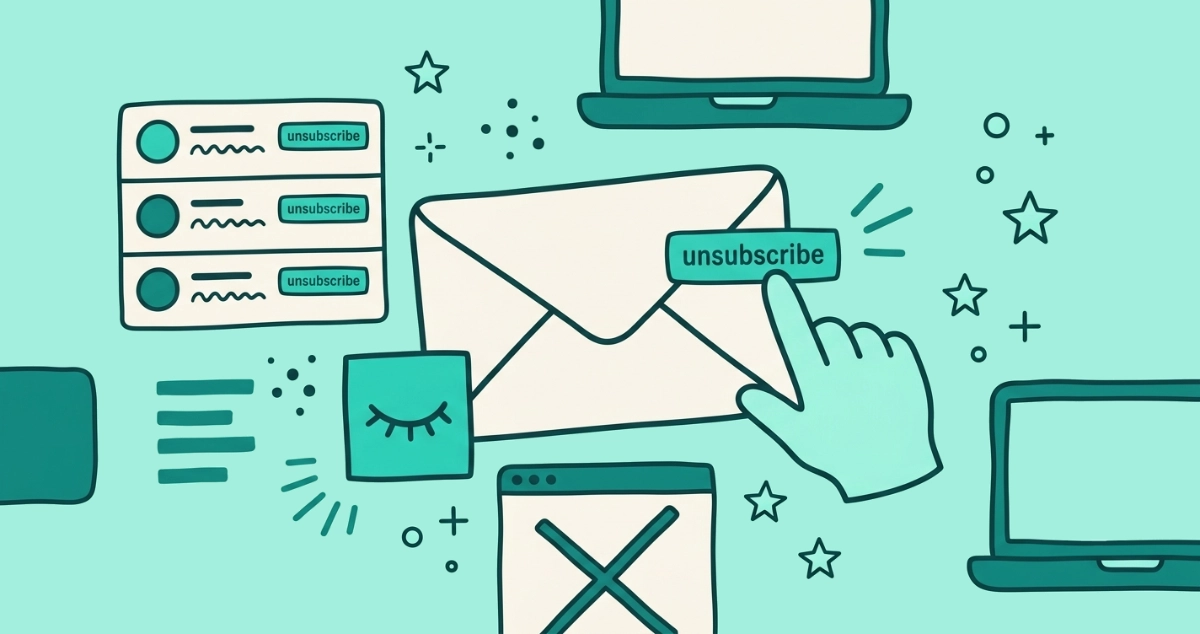
Yes. Instead of opening the message, open your mail app’s subscription list: Gmail’s Manage subscriptions, or Outlook’s Settings, then Mail, then Subscriptions. You unsubscribe straight from the list, the app sends the request through the sender’s List-Unsubscribe header, and the message never renders, so no tracking pixel fires and nothing confirms your address is live.
Can you really unsubscribe without opening the email?
Yes, because the unsubscribe instruction does not live in the body you would open. It lives in a hidden line called the List-Unsubscribe header, tucked into the email’s technical headers where you never see it. Your mail app reads that line and builds its own unsubscribe control from it, separate from anything the sender drew inside the message.
That separation is the whole trick. The button belongs to Gmail, Apple, or Microsoft, not to the marketer, and it points straight at the sender’s opt-out endpoint. When you use it, the app talks to that endpoint on your behalf. You do not click the sender’s footer link, you do not load their web page, and on the list-based routes you do not even render the message. The header, and the one-click standard built on top of it, are covered in full in one-click unsubscribe explained.
Why does opening the email matter?
Opening the message is what lets the sender confirm you. Most marketing emails carry a tracking pixel, a 1x1 transparent image that fires the instant your mail app renders the message. It reports your open time, your rough location, and your device, all tied to a token unique to your address. That fetch is the tracking event, and our guide to spy pixels walks through everything it leaks.
The quieter cost is the signal itself. An address that opens mail is a live address, and a live address is one worth mailing more, selling on, or targeting harder. Every open tells the sender the account is real, watched, and active. Leaving the message closed while you opt out from a list denies them that confirmation. The unsubscribe still reaches the sender, but the open never does.
How do I unsubscribe without opening the email in Gmail?
Gmail’s Manage subscriptions view is the clean route, and it never opens a message. Google rolled it out on July 8, 2025 across web, Android, and iOS, per Google’s announcement.
- Open the navigation menu. On the web, click the three-line menu in the top-left of Gmail. On Android or iOS, tap the same menu in the app.
- Choose Manage subscriptions. It sits in the left nav below Inbox, Starred, and Snoozed. On the web you can also type
#subin the address bar to jump straight there. - Find the sender. Gmail lists your active subscriptions sorted by the most frequent senders, showing how many emails each sent you in the past few weeks.
- Tap Unsubscribe. Google’s description is direct: “Easily unsubscribe in one click, and Gmail will send an unsubscribe request to the sender on your behalf.”
Expected outcome: the sender leaves your list without a single message opening. Google notes it may take a few days for the mail to fully stop. For a deeper tour of the panel and its limits, see our Manage subscriptions guide. If you would rather act inside a message you already opened, Gmail also shows an Unsubscribe link next to the sender’s name at the top, though the reasons that link sometimes goes missing are their own separate story.
How do I unsubscribe without opening the email in Apple Mail?
Apple Mail shows a banner when it recognizes a mailing list, and clicking it never opens a website. According to Apple Support, a banner below the message header tells you the message is from a mailing list. Click Unsubscribe in that banner, then click OK in the alert, and the banner disappears as Mail unsubscribes you.
Under the hood, Apple Mail sends a plain email from your address to the sender’s opt-out endpoint. As the deliverability resource Spam Resource documented in February 2023, Apple supports only the mailto form of the List-Unsubscribe header, so the app generates an outbound message rather than firing a web request. No browser opens either way.
One honest caveat: the banner sits on the message, so reaching it means the message renders in your reading pane, which can fire a pixel. If that is your worry, turn off remote images first, in Settings, then Apps, then Mail, then Load Remote Images off. On iPhone and iPad, iCloud Mail Cleanup goes further, offering Unsubscribe Recommendations you can act on from a list without opening anything.
How do I unsubscribe without opening the email in Outlook?
Outlook.com collects your senders in one settings panel, and you opt out from there without opening a message. Per Microsoft Support:
- Open Settings. Click the gear icon in Outlook.com.
- Go to Mail, then Subscriptions. The panel lists your current subscriptions.
- Select Unsubscribe next to the sender you want gone, then click OK to confirm.
That is the no-open route. Outlook sends the opt-out for you, and the message stays untouched. Newer versions of Outlook also draw an Unsubscribe link at the top of the reading pane, next to the sender’s name, when the message is bulk and carries the right header. Our full Outlook unsubscribe walkthrough covers Sweep, blocking, and the edge cases alongside these.
Which mail apps let you opt out without opening?
Each of the big three exposes a list-based control that keeps the message shut, plus an in-message button for when you do open. The list route is the one that skips the pixel entirely.
| Mail app | No-open route | What the app sends | Message renders? |
|---|---|---|---|
| Gmail (web + app) | Manage subscriptions view | Gmail’s unsubscribe request, one-click where supported | No |
| Outlook.com | Settings, then Mail, then Subscriptions | Outlook’s opt-out request | No |
| Apple Mail (iPhone, iPad, Mac) | Unsubscribe banner above the header | A mailto opt-out email from your address | In preview only, no website loads |
Bottom line: on Gmail and Outlook, the subscription list opts you out with the message fully closed. On Apple Mail the banner is the fastest path, and pairing it with remote images turned off keeps the pixel quiet too.
What if there is no unsubscribe button at all?
Some senders never add the header, so no button or banner appears. Three cases cover most of them: small senders and personal newsletters that send too little to bother, transactional mail like receipts and shipping notices that is exempt from the rules, and senders whose reputation or authentication fell short of what the provider will vouch for. We cover the full list of reasons in why the Gmail Unsubscribe button goes missing.
When there is no in-app control, you have two safe moves. If you trust the sender, turn off remote image loading first so opening the message fires nothing, then use the footer unsubscribe link after confirming it points to the real sender’s domain. If you cannot place the sender, skip the link entirely and mark the message as spam. That trains your provider’s filter and sends no signal back that your address is live.
How do you clear a whole inbox without opening a thing?
Doing this sender by sender is slow once years of subscriptions have piled up, because every provider hides the control in a different place and only lists the senders it already trusts. The header, though, is the same across all of them, and it can be read in bulk.
That is what our Email Unsubscriber app does. It scans your inbox from inside your browser, reads the List-Unsubscribe header for every sender in one pass, and fires a genuine one-click opt-out wherever the sender supports it, flagging the ones that only offer an old-style link. The scan runs on your device, so we never read, analyze, or monetize your email content, the access is read-only, and the session expires in about an hour with no lingering token. It works with Gmail and personal Microsoft accounts. The built-in provider routes are free and worth a first pass; a browser-based sweep earns its place when the backlog is large.
The takeaway
You never have to open a marketing email to leave its list. The unsubscribe instruction lives in a header your mail app already reads, and the app will act on it for you. On Gmail, that is Manage subscriptions. On Outlook, it is Settings, then Mail, then Subscriptions. On Apple Mail, it is the mailing-list banner.
Reach for the list-based route when you can, because a closed message is a message that never fired its pixel and never confirmed your address. When only a footer link exists, block remote images before you open, check the link is real, and opt out. When you cannot trust the sender at all, mark it as spam and let the filter carry it from there.