You open an email and a red bar is sitting across the top of it: This message seems dangerous. Maybe it is from a name you recognize, maybe it is a stranger, and now you are not sure whether to trust anything below the warning. The banner is doing its job by making you pause. Here is what it actually means.
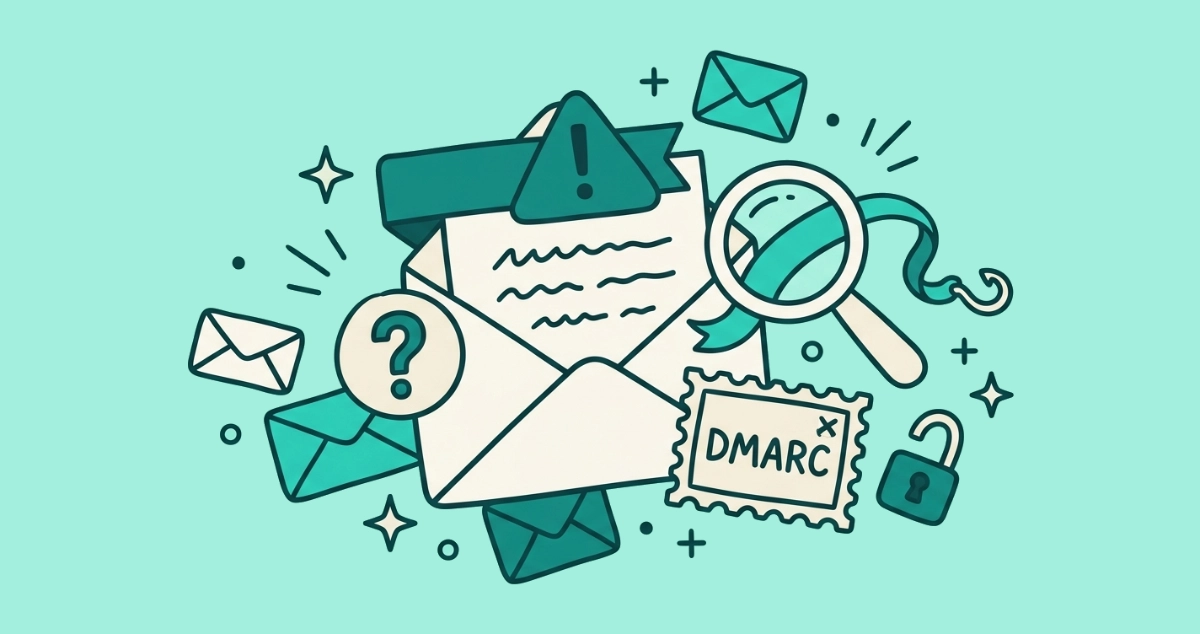
Gmail’s red “This message seems dangerous” banner means its filters scored the message as very likely phishing, usually because many people reported similar mail, the sender failed authentication, or a link looks malicious. It is not proof. Do not click links, download attachments, or reply. Verify the sender through a channel you chose.
What does “this message seems dangerous” mean in Gmail?
It means Gmail’s automated filters classified the message as high-risk and put a red banner in front of the content to slow you down. The warning is a score, not a verdict. Gmail did not read the message and prove it is a scam. It added up danger signals, the total crossed a threshold, and the banner is the result.
Those filters catch an enormous amount. According to Google’s Safety Center, Gmail blocks more than 99.9% of spam, phishing, and malware before it reaches you. The banner appears in the sliver that gets through the automated blocks but still looks risky enough to flag. So the warning is Gmail telling you it is not confident enough to filter the message out entirely, but not comfortable letting it through silently either.
What do the different Gmail warning colors mean?
The color signals how worried Gmail is. Red is the strongest warning, yellow is a caution, and a red question mark where the sender’s photo should be is a quieter nudge to check who sent the mail. As of 2026, the mapping looks like this.
| What you see | Rough severity | What Gmail is telling you |
|---|---|---|
| Red banner, “This message seems dangerous” | High | Scored as very likely phishing or dangerous. Others reported similar mail, or a link or attachment looks malicious. |
| Yellow or pale banner, “Be careful with this message” | Medium | Gmail could not verify the sender. Often a first-time sender, a possible spoof, or a reply-to that points elsewhere. |
| Red question mark in place of the sender avatar | Low to medium | Gmail could not confirm the sender is authenticated. A prompt to check, not a judgment on the content. |
Gmail sometimes uses the header “Be careful with this message” on more than one banner strength, so the words alone will not always tell you how serious it is. The color does. Red means treat it as dangerous until proven otherwise. Yellow means verify before you trust it.
What triggers the “this message seems dangerous” warning?
Several signals stack up, and the red banner appears when enough of them land at once. No single one is usually enough on its own.
- Failed authentication. The sender’s domain does not pass SPF, DKIM, or DMARC, so Gmail cannot prove the mail is really from who it claims. Our guide to SPF, DKIM, and DMARC explains what those checks are and why a gap in them makes any message look suspect.
- Spoofing or a lookalike sender. The address impersonates a known contact or brand, sometimes with a swapped character like a zero for the letter O, or a display name that hides a different real address.
- Reports from other recipients. When many people mark similar messages as phishing, Gmail generalizes and flags the pattern for everyone who receives it.
- A suspicious link. The message points to a domain on a blocklist, a redirect chain, or a page that does not match the sender it claims to be.
- A risky attachment. Certain file types, or files Gmail associates with malware, raise the score sharply.
- Pressure and credential prompts. Urgent deadlines, threats to close your account, and requests for a password or payment are classic phishing shapes, and Gmail weighs them.
The polished writing of a modern scam does not lower any of these signals, which is why a warning can sit on top of an email that reads perfectly. We cover that shift in how to spot AI phishing emails, where the grammar is clean but the plumbing underneath still gives the sender away.
Is a flagged message always dangerous?
No. Gmail’s filters are probabilistic, so they catch real mail by mistake sometimes. A warning is a strong reason to slow down, not a guarantee that the message is an attack. Legitimate email gets flagged for reasons that have nothing to do with the sender’s intent.
The usual causes of a false positive are dull ones. The sender is a small business or a person who never set up authentication, so Gmail cannot verify them. The message was forwarded, which breaks the original signature. It came through a mailing list that rewrites headers along the way. Or it is simply the first time that address has ever written to you, which earns a caution banner by default. This is the same false-positive problem that lands wanted mail in the spam folder, and we unpack that side of it in why legit email gets flagged as spam.
So read the banner as a question, not an answer. Gmail is asking you to confirm the sender before you act. Most of the time the warning is right. When it is wrong, a few seconds of checking sorts it out.
What should I do when Gmail says a message seems dangerous?
Treat the message as hostile until you have verified otherwise, then follow these steps in order.
- Do not click, download, or reply. Google’s own advice is to avoid clicking links, downloading attachments, or entering personal information when you see a warning. Start there.
- Read the real sender address. Tap or click the display name to reveal the actual email address behind it, then read the domain one character at a time. A bank warning from
secure-alerts@paypa1-team.comis not from your bank. - Verify out of band if it matters. If the message claims to be from a company or a person you deal with, look up their real number or website yourself and confirm there. Do not trust any contact detail printed inside a flagged message.
- Report it as phishing. Open the message, click the three-dot More menu next to Reply, and choose Report phishing. That alerts Google and moves the message to spam.
- Only click Looks safe if you are certain. If you have confirmed the sender and the warning is a false positive, use the banner’s Looks safe option or Report not phishing. This also teaches Gmail to judge similar mail better next time.
The outcome you want is simple. A real threat gets reported and removed, and a wrongly flagged message gets confirmed and cleared, without you ever typing a password into a page you reached from the email.
How do I tell a false positive from a real threat?
Run three quick checks, and the answer is usually obvious. Did you expect this message, or something like it? Do you recognize the sender’s real domain, not just the display name? And is the message asking you to do something urgent, like log in, pay, or confirm details under a deadline?
A message you were expecting, from a domain you know, that asks nothing urgent of you is very likely a false positive from a sender with a broken authentication setup. A message from a stranger, or a lookalike domain, that pushes you toward a link with urgency is the real thing. When the checks conflict or you cannot tell, the safe move is the cautious one: report it, and reach the supposed sender through a channel you chose yourself.
Why does Gmail keep flagging mail I actually want?
Usually the sender never fully set up authentication, so Gmail hedges every message from them with a caution. There is not much you can do about another company’s SPF and DKIM records. You can add a trusted sender to your contacts, which makes Gmail less likely to warn on their mail, and you can mark a wrongly flagged message Not phishing to correct the filter.
There is a second cause worth naming. Some of the mail that keeps getting flagged is graymail: newsletters and promotions you technically opted into and now never open. Gmail sees the low engagement, grows suspicious of the sender, and starts hedging. If you no longer read that sender, the clean fix is not to train Gmail to trust a borderline source. It is to leave the list, so the mail stops arriving at all.
Doing that across years of signups is the tedious part. Email Unsubscriber scans your Gmail or Outlook inside your own browser, lists every subscription sender in one place, and fires the real one-click unsubscribe wherever a sender supports it. It is not a spam filter and it does not scan your mail for phishing. It shrinks the pile of borderline senders you have to keep judging every morning. The scan runs on your device, and we never read, analyze, or monetize your email content.
The takeaway
Gmail’s “This message seems dangerous” banner is a risk score wearing a red coat. It appears when authentication fails, a sender looks spoofed, other people reported similar mail, or a link or attachment looks wrong. It is right far more often than not, and it is not proof. When you see it, do not click anything, read the sender’s real address, verify surprises on a channel you chose, and report the message if it does not check out. The warning is Gmail handing you the decision. Slow down, and it is an easy one to make.